
◷ Reading Time: 6 minutes
There are two ways to go about creating/retrieving your Access Key Id and Secret.
1. From the My Security Credentials for Root Users
2. From the Identity and Access Management (IAM) page for IAM Users
Root Users
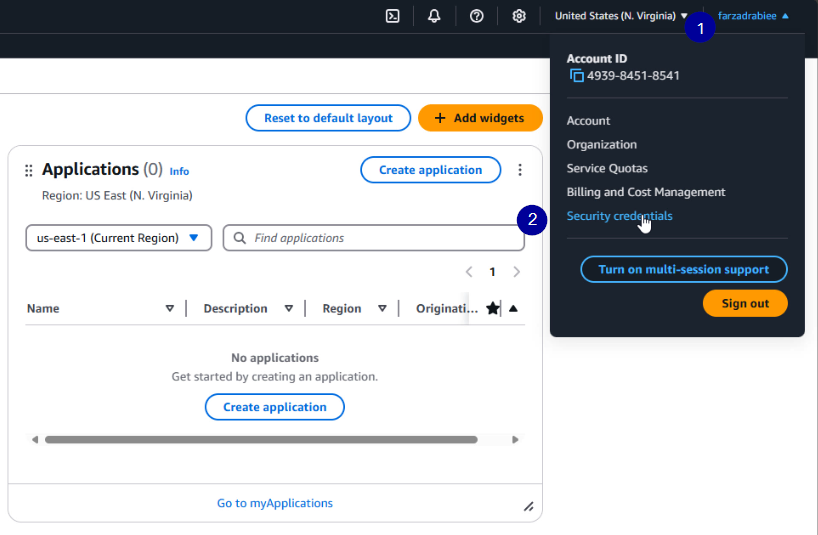
On the landing page, click on your account name then select Security credentials.
Next, under the Access keys section click Create New Access Key.

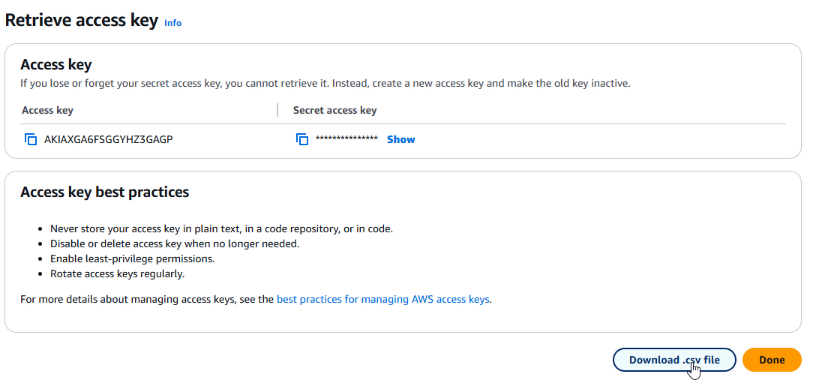
The next window will recommend alternatives to a root user key. Select to create a key and you will see this screen where you can download the key file:
IAM Users
A Root User is allowed to create IAM users to represent the person or application to interact with AWS.
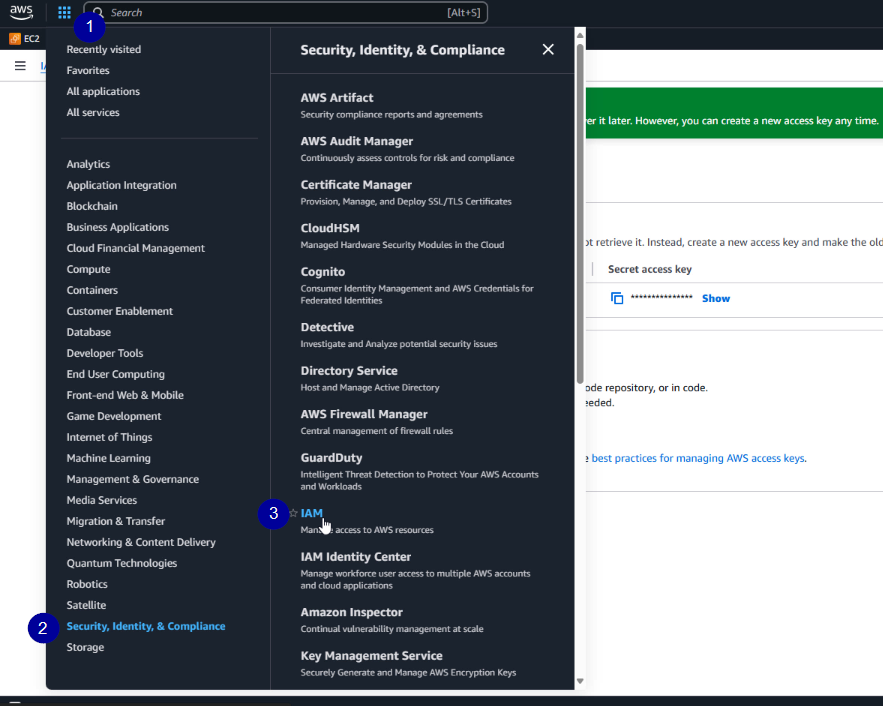
On the AWS Management Console, click on the Services menu (upper left side). From the list of All Services, look for Security, Identity, & Compliance . In the expanded menu click on IAM.
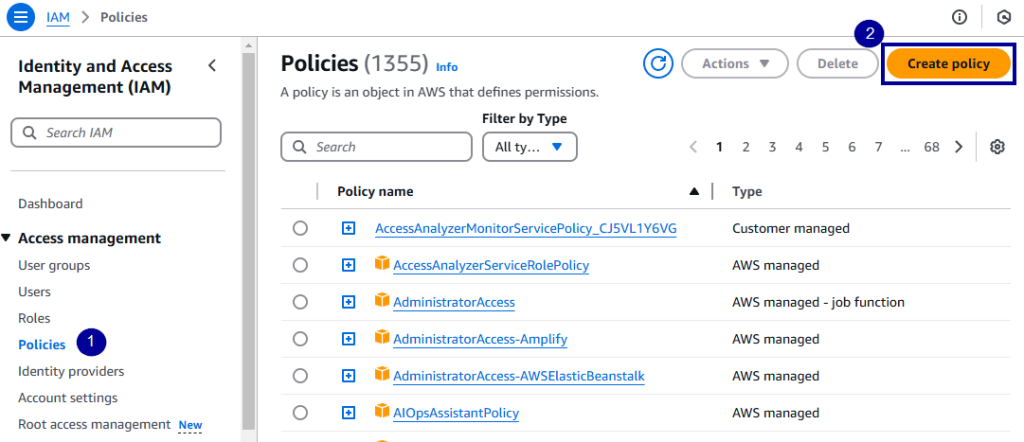
In order for an IAM User to successfully deploy an AWS Lambda, you will need to create a custom policy. On the Identity and Access Management (IAM) page, click Policies (under the Access management menu) then click Create Policy.
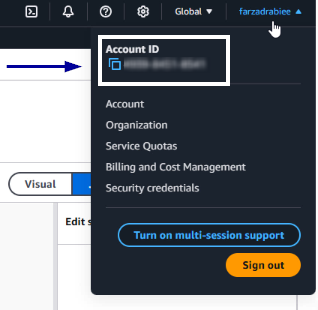
On the Create Policy page, click on the JSON tab and copy-paste the code below. Replace the {AWS_ACCOUNT_ID} with your Account ID found at the user dropdown.
{
    "Version": "2012-10-17",
    "Statement": [
        {
            "Sid": "VisualEditor0",
            "Effect": "Allow",
            "Action": [
                "apigateway:DELETE",
                "apigateway:UpdateRestApiPolicy",
                "apigateway:PUT",
                "apigateway:PATCH",
                "sts:GetAccessKeyInfo",
                "sts:GetCallerIdentity",
                "apigateway:POST",
                "apigateway:GET"
            ],
            "Resource": "*"
        },
        {
            "Sid": "VisualEditor1",
            "Effect": "Allow",
            "Action": "lambda:InvokeFunction",
            "Resource": "arn:aws:lambda:*:{AWS_ACCOUNT_ID}:function:*"
        }
    ]
}
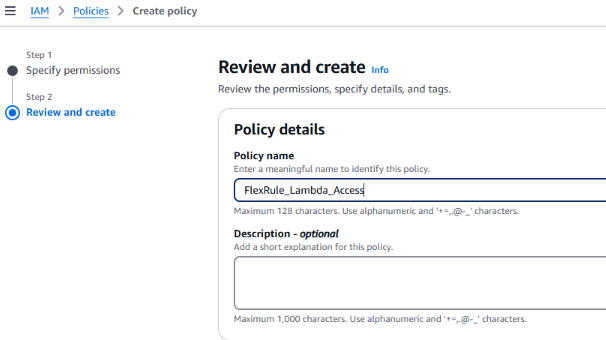
On the review section of the create Policy, set the name to FlexRule_Lambda_Access.
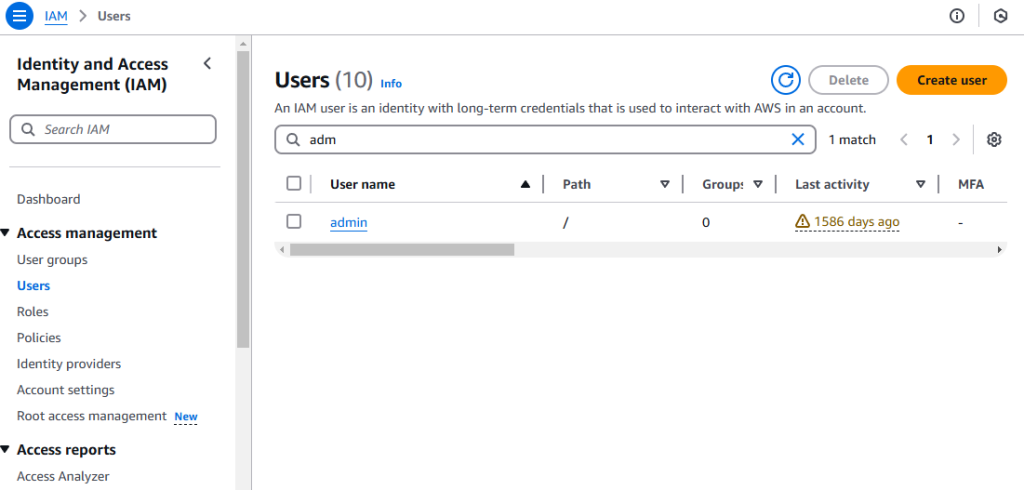
Now, on the Identity and Access Management (IAM) page again, click Users (under the Access management menu) then click Create user.
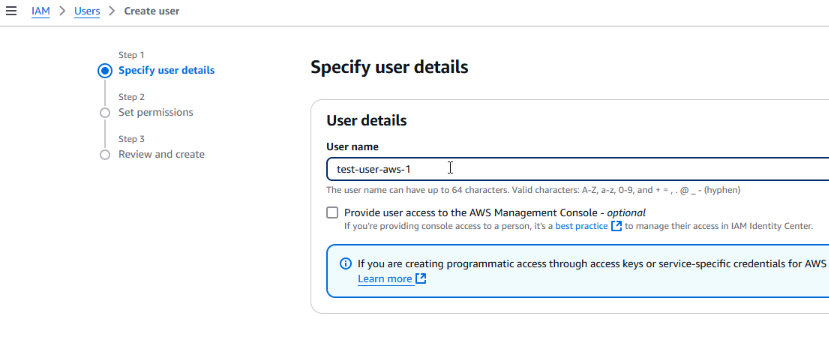
Enter in the User Name
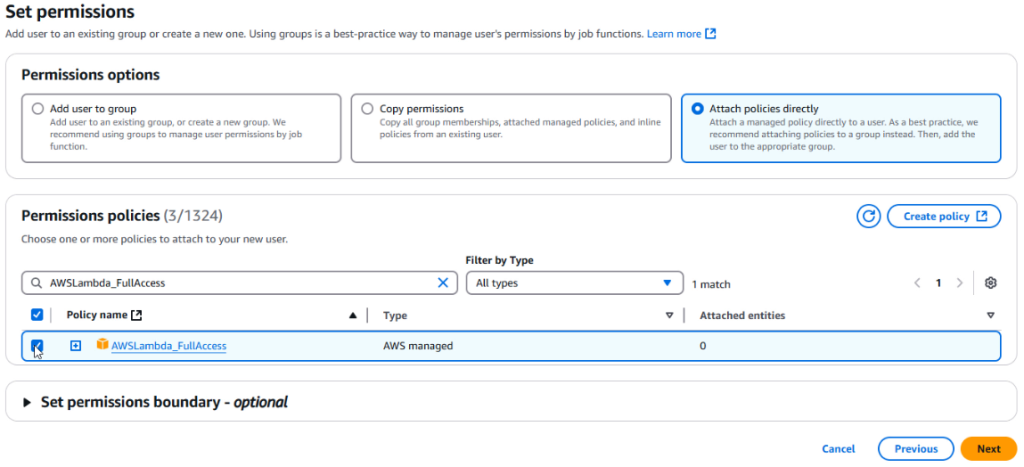
Add appropriate Permissions by selecting Attach existing policies directly and search for: AmazonS3FullAccess, FlexRule_Lambda_Access, AWSLambda_FullAccess
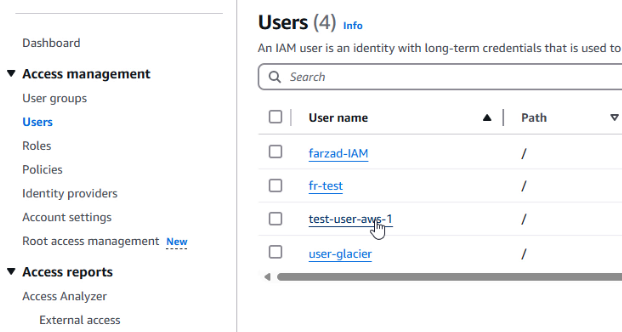
Select user from list of users
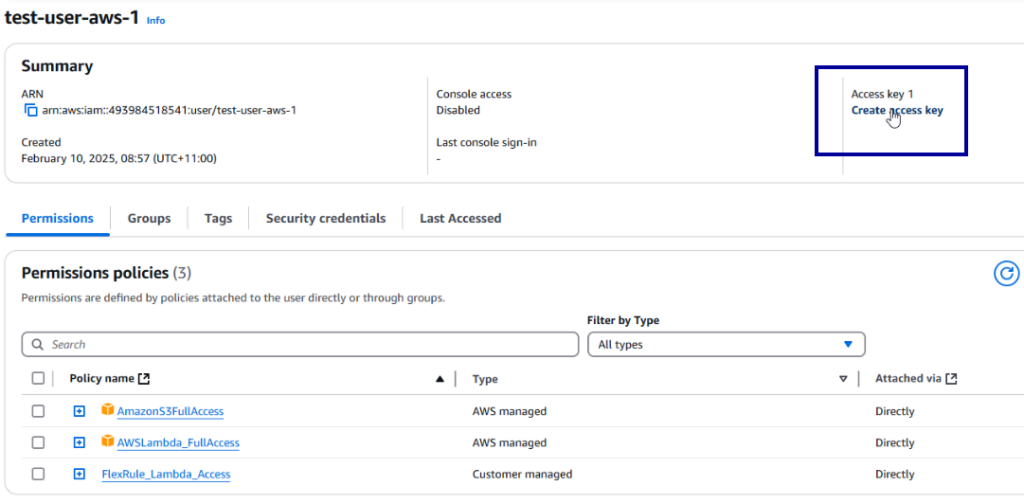
Click Create access key
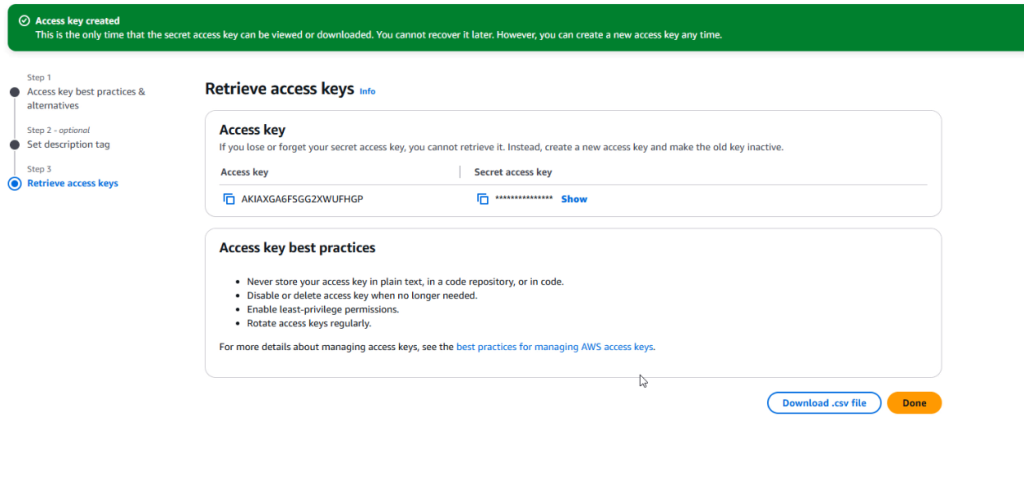
Proceed to the next steps, at the end you will see a Success page that shows the Access Key Id and Secret of the IAM user where you can download the .csv file.
Troubleshoot
If you get any permission errors when deploying,
1. Ensure that you have provided all the necessary permissions to the user.

2. Ensure that you have added your account ID under the policy, FlexRule_Lambda_Access.
