
◷ Reading Time: 5 minutes
In this section, you will learn how to run the FlexRule Server. Generally, there are two ways of running the server:
- Run as Windows Console
- Run as Windows Service
Running as Windows Console
To run the server nodes, you just need to browse to the location where you have them installed.
Run Identity Node
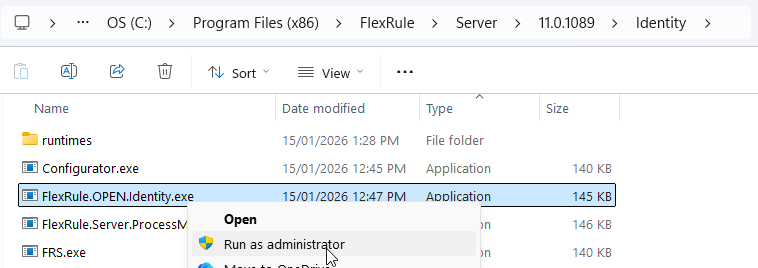
Locate where you have installed the Identity node and find the FlexRule.OPEN.Identity.exe file, right-click on it, and run it as Administrator.
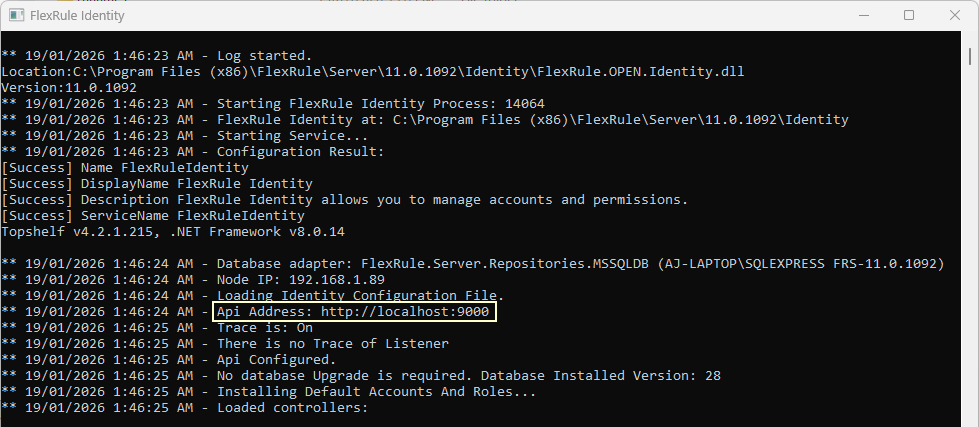
Once you’ve done that, you will see the screen below:
Run ExecutionController
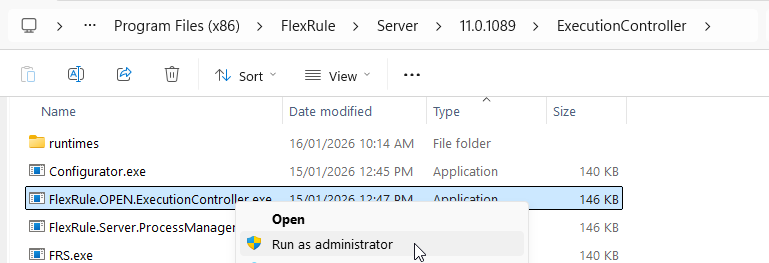
Locate where you have installed the master execution node and find the FlexRule.OPEN.ExecutionController.exe file, right-click on it and run it as Administrator.
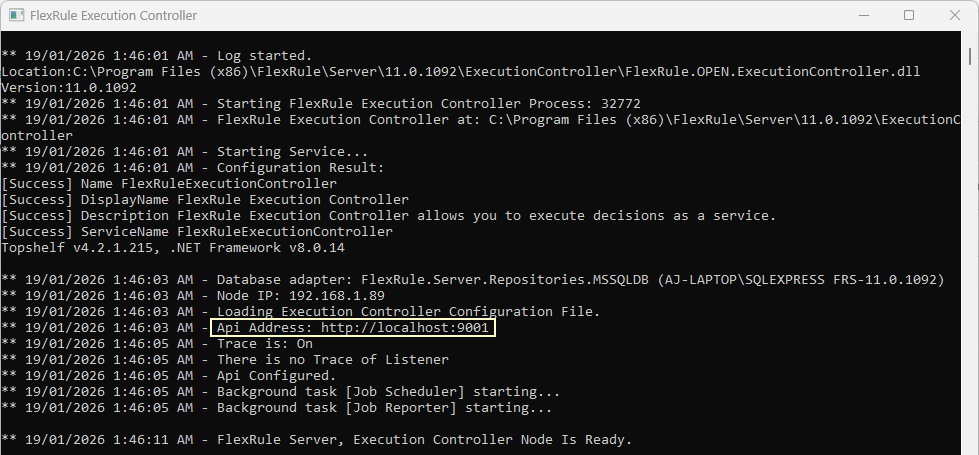
Once you’ve done that, you will see the screen below:
Run ExecutionWorker
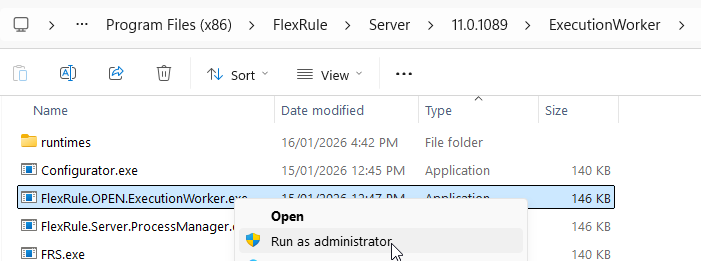
Locate where you have installed the ExecAgent node and find the FlexRule.OPEN.ExecutionWorker.exe file, right-click on it and run it as Administrator
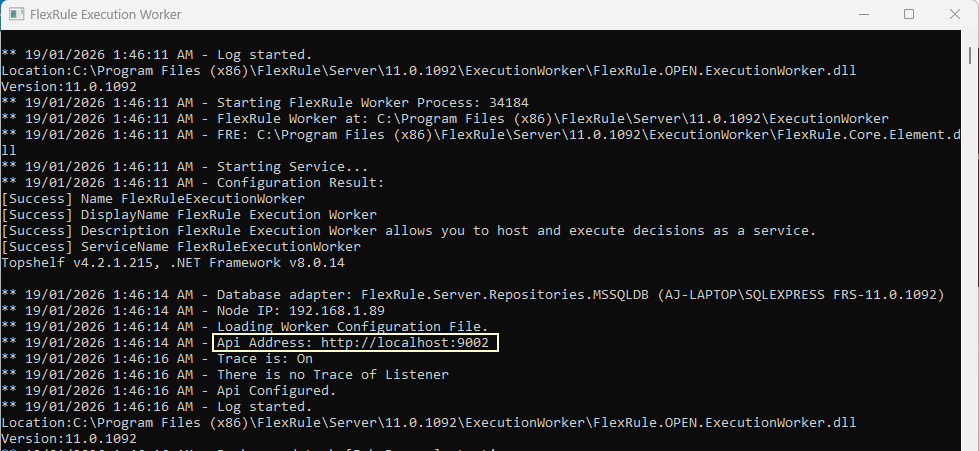
Once you’ve done that, you will see the screen below:
Run AssetManagement
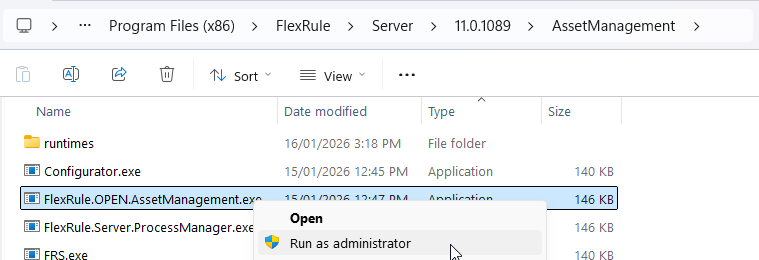
Locate where you have installed the Workbench node and find the FlexRule.OPEN.AssetManagement.exe file, right-click on it and run it as Administrator.
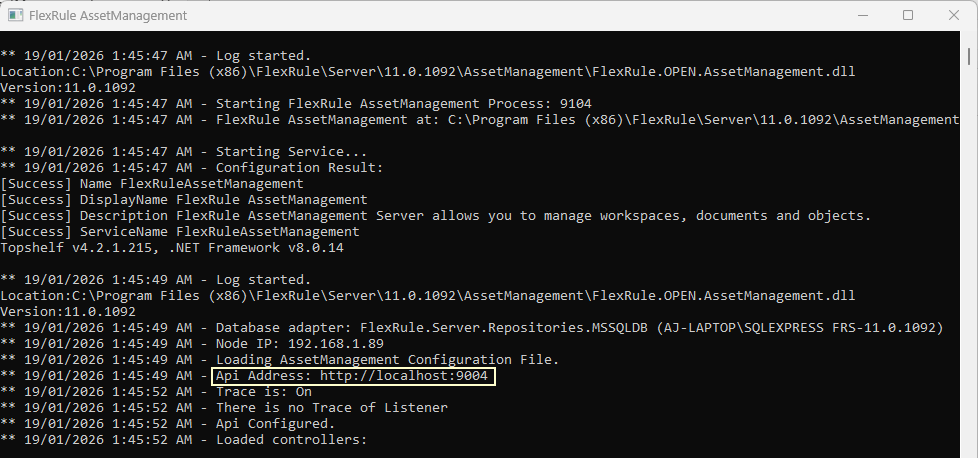
Once you’ve done that, you will see the screen below:
Run Workbench
Locate where you have installed the Workbench node and find the FlexRule.OPEN.Workbench.exe file, right-click on it and run it as Administrator.
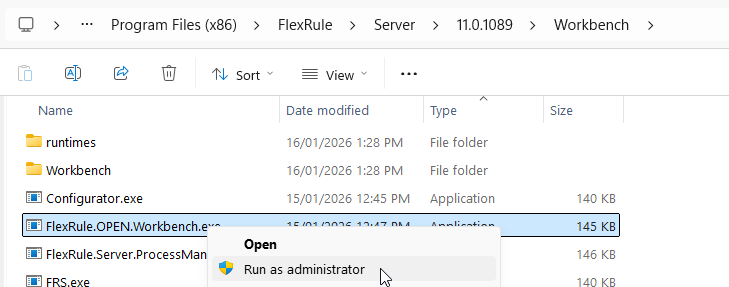
Once you’ve done that, you will see the screen below:
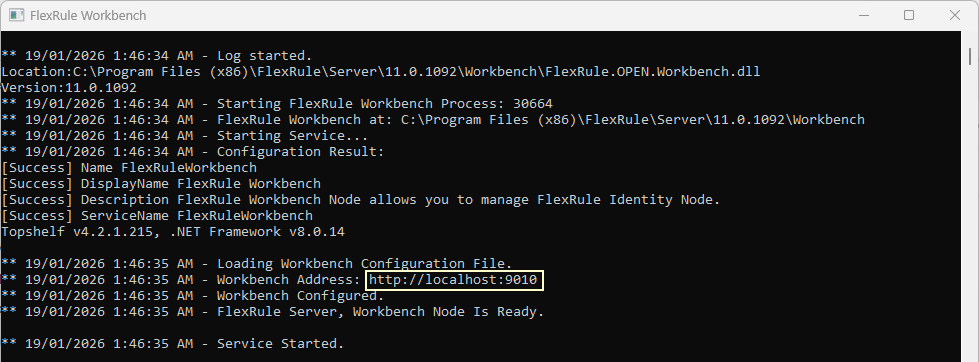
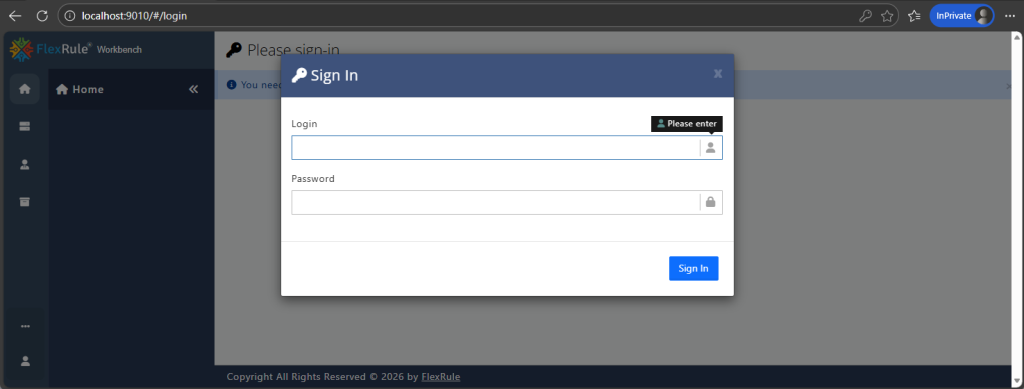
When you navigate to the workbench address (ex: http://localhost:9010) in a browser, you can see the Workbench user interface:
Running as Windows Service
Installing the Identity, ExecutionController, ExecutionWorker, AssetManagement and Workbench as a Windows service is simple. What you need to do is:
- Open a command prompt as an Administrator.
- Navigate to the relevant folder: Identity, ExecutionController, ExecutionWorker, AssetManagement or Workbench folder
- Depending on what node you are installing as a service using either of the following commands
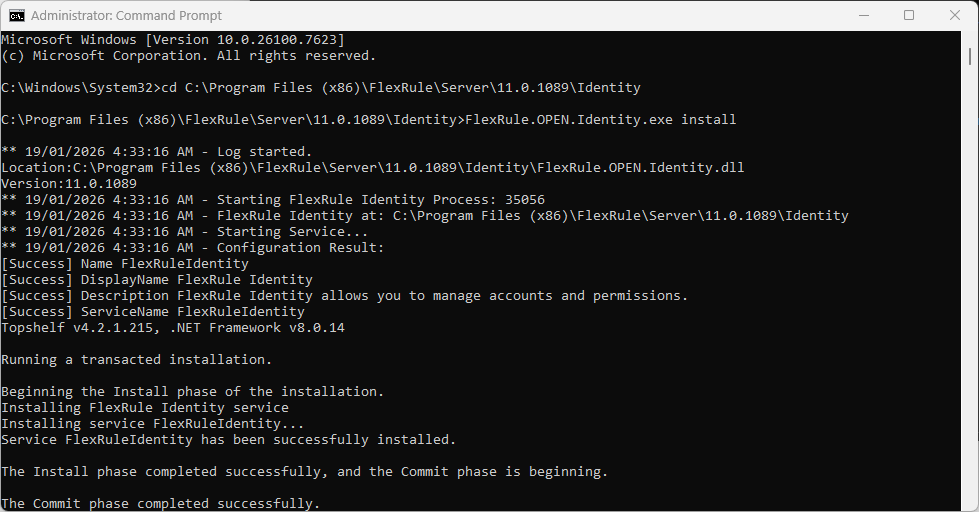
- FlexRule.OPEN.Identity.exe install
- FlexRule.OPEN.ExecutionController.exe install
- FlexRule.OPEN.ExecutionWorker.exe install
- FlexRule.OPEN.AssetManagement.exe install
- FlexRule.OPEN.workbench.exe install
For example, the image below shows the installation of Identity node as a Windows Service:
And then you can manage the Services via Windows Service Management:
Open the Windows Task Manager and navigate to Services:
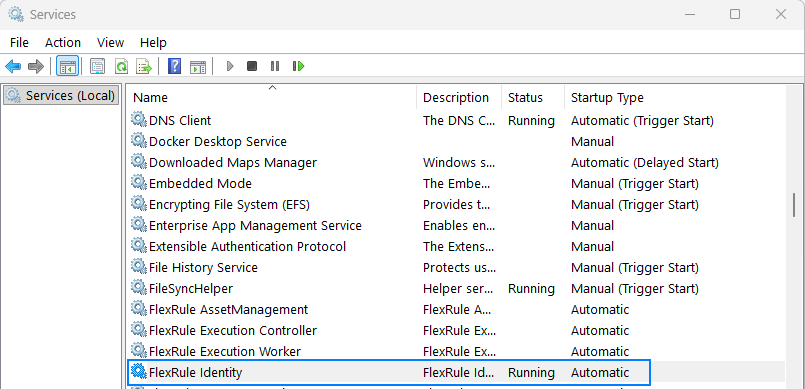
In order to uninstall any services, you can use the Uninstall command.
Ex: FlexRule.OPEN.Identity.exe install uninstall
Extra Parameters
If you need to know about the other supported parameters, just type ‘help’:
FlexRule.OPEN.Identity.exe help
or for ExecutionWorker:
FlexRule.OPEN.ExecutuionWorker.exe help