
◷ Reading Time: 3 minutes
To use FlexRule server requires two licenses, Server and Runtime. These are added and managed via the Workbench application. The process for adding or updating licenses are very similar.
Add a license
To add a license for FlexRule Server first follow our Resource Hub guide to download Licenses from FlexRule User Portal.
Now log into the Workbench application and if there is no Active license or if the active license has expired you will see the Licenses option on the home page displayed as a red circle with a cross.
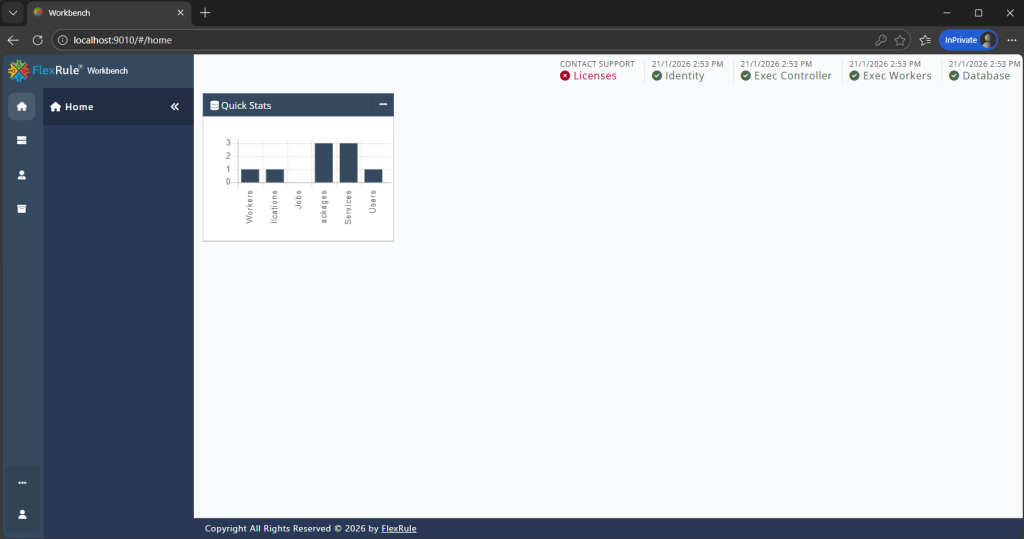
Next, navigate to the Administration > Licenses menu and if no licenses are installed you will see a blank table view. To add the license follow the steps below:
- Open the downloaded license from My Portal and copy the license code
- From the top menu select “New License” and choose the relevant option
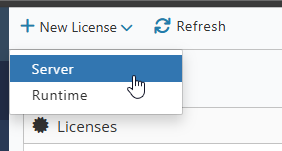
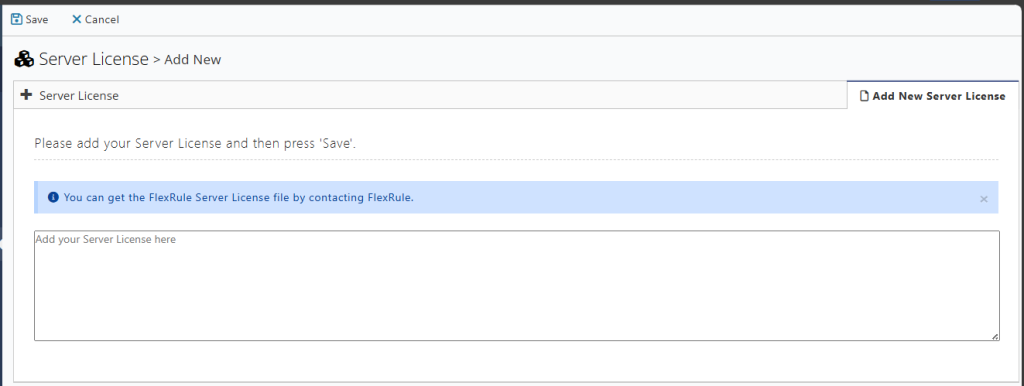
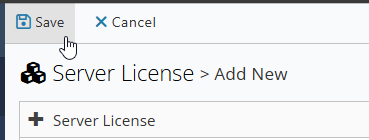
- Paste the license code into the input and hit Save from the top menu
- Now toggle the new added license to Active
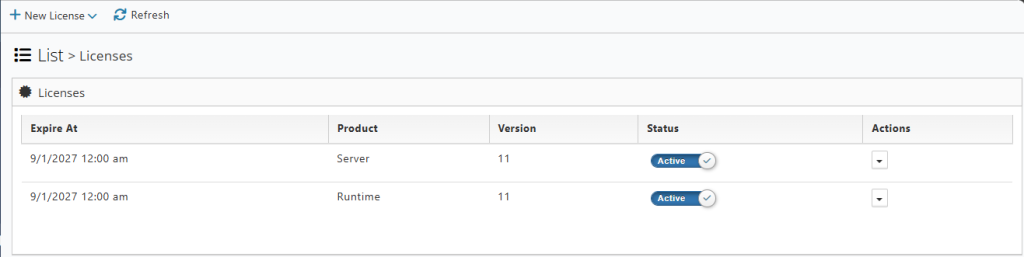
- Navigate to Home and check the Licenses option is showing a green tick circle.
Update existing license
If you are updating an expired license then you will see the details of the old license(s) in the Administration > Licenses menu section.
To update a license you will first need to remove the old license(s). To do this:
- Toggle the status of the Server license to Deactivate it
- Select “Delete” from the Actions menu to remove the old license

- Now follow the steps above for Adding a new license.