◷ Reading Time: 4 minutes
Service scheduling is used to run different versions of Services at different times.
This is useful if you have one Package with multiple Services and your old Service has been running for a while, and you now want to load the new version of that Service at a specific time (e.g. at 12 PM today). This will stop using the old version and start using the new version at the specified time.
General Information
- A Package can include multiple Service versions with business logic and processes.
- All Services (with different versions) inside a Package can be scheduled. In this case, all Services must be enabled.
- A Service with Start/End settings has priority over a Service with no Star/End settings.
- If you do not set any schedulers (Star/End settings) for your Services and you have multiple Services, then you should choose a Service version when you call your service via REST API. Otherwise, you will receive an error.
Setup Scheduler for a Service version
If you have different Service versions for the same package, then for each of them you can set up a different Date/Time service scheduler.
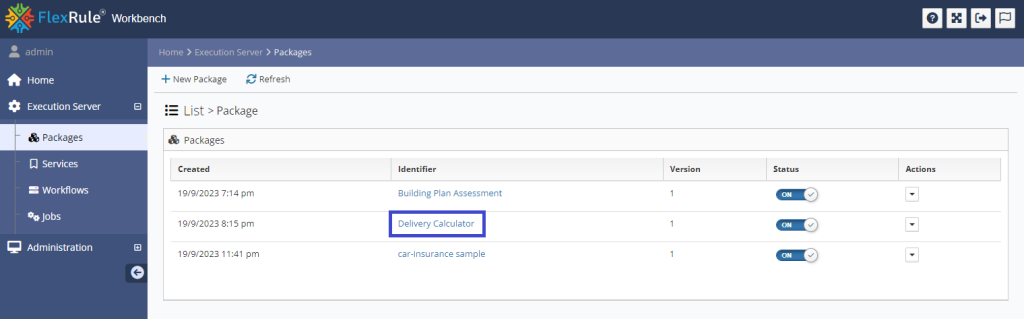
To access the scheduler in Workbench, navigate to the Packages menu under Execution Server. Then click on the identifier link of the package with multiple services.
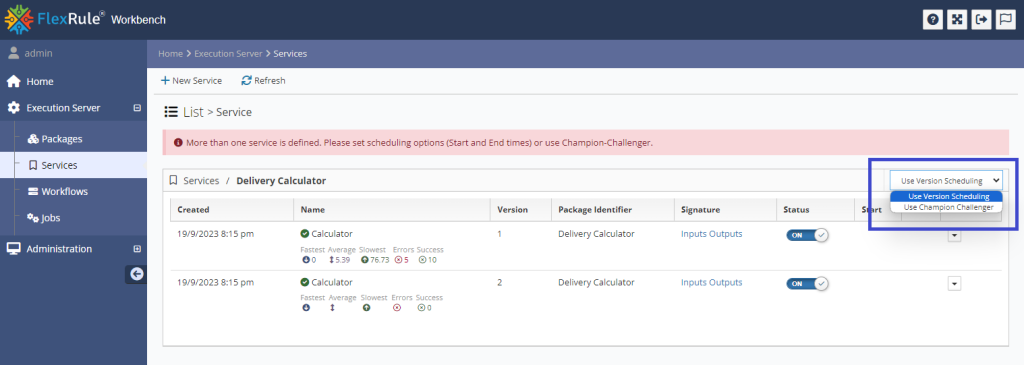
Here you will see a list of Services within the package along with details for each service.
An alert will display is there is no schedule (or Champion challenger weight) assigned to at least one of the multiple services. You have the option to select scheduling via the dropdown menu at the top of the table, select Use Scheduling there.
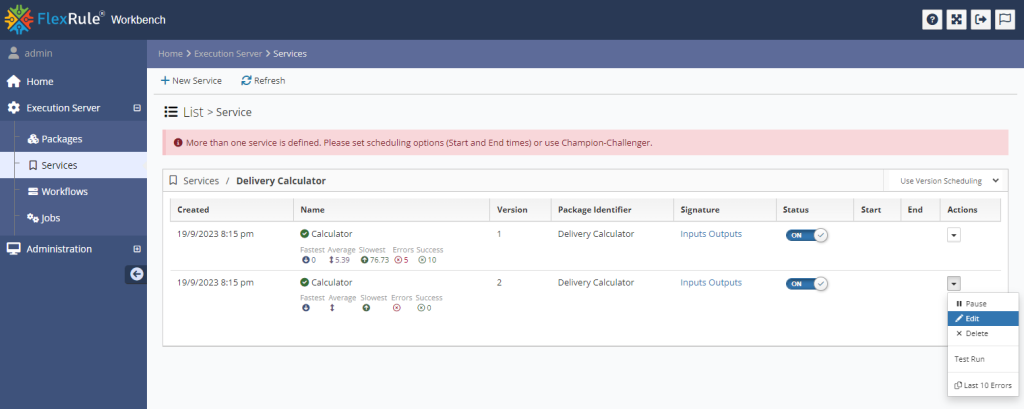
Now choose the service you want to schedule and select Edit from the Actions dropdown menu.
You are taken to the Service edit view and then select the Options tab.
Under this tab you will see the schedule options to set the date and time to run the service. Following are some things to note:
- date/time are based on UTC time.
- If you only set a Start date/time and don’t define any End date/time, the service will be ongoing.
- If you set a date and not a time the default time will be 12:00am on that date.
- You do not need to STOP any Services to make the scheduler work. FlexRule Server finds the best available Service that is enabled base
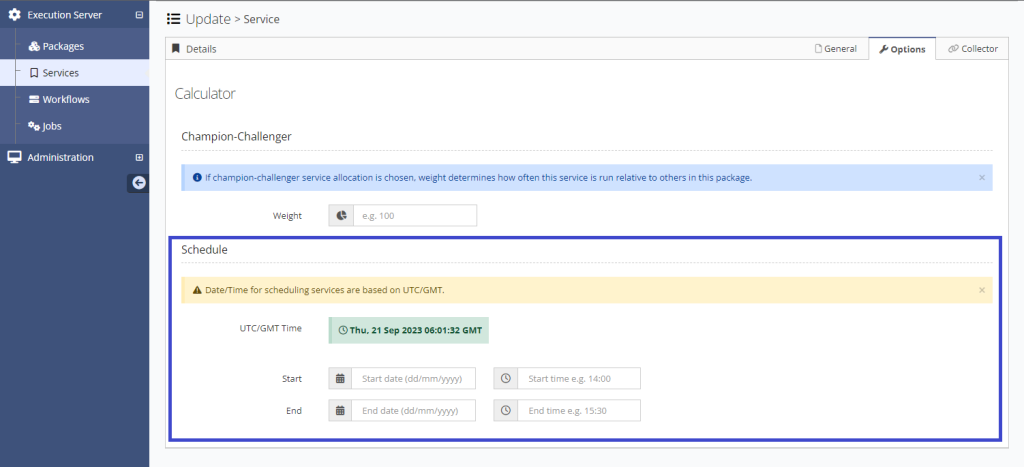
Once you have set the schedule, click on Update to apply to the service.


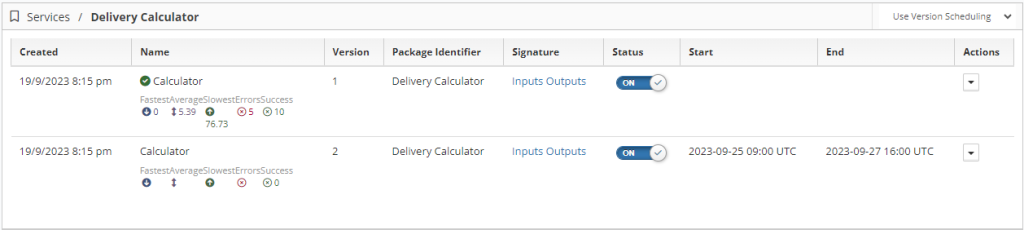
Now if you navigate back to the Package Services list view you will see the applied schedule for the service in the summary table.