
◷ Reading Time: 7 minutes
FlexRule Workbench is a responsive web-based administration and management console for FlexRule Server.
You can use the workbench to perform the following tasks.
- Manage Packages and Services
- Provide different access levels to users, groups, and applications
- Manage ExecutionWorkers and related compatibility with Services and Jobs
- Administer Licenses for Server and Runtime
- Manage Workspaces, folders, documents, and objects.
- See the health and logs of services
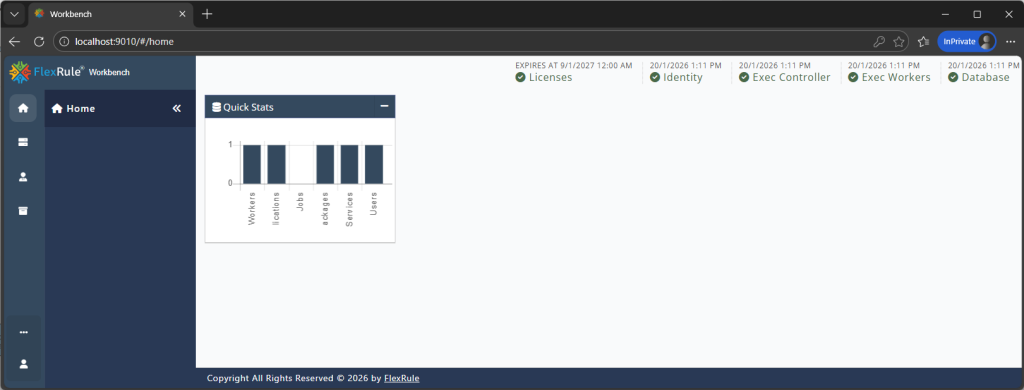
These are the resources you can manage in the workbench:
- Packages
- Services
- LifeCycles
- Schedule Jobs
- Workspaces
- Types
- Asset Browser
- Accounts
- Users
- Applications
- Groups
- Access Control
- Roles
- Privileges
- Traces
- Nodes
- Systems
- Workers
- Licenses
Accessing Workbench
Open your web browser and navigate to the address you defined during the workbench configuration step or in the FlexRule server configuration file (e.g., http://localhost:9010/).
Sign In/Out
Once you open the workbench, it will prompt you to log in if you have not already or if your authentication token has expired. NOTE: The token’s duration is 24 hours.

Simply enter your username and password and press the “Sign In” button. The default login is “Admin” and you have already entered the password on configuring the Master Server during the installation process.
Once you have logged in, you will see your username.
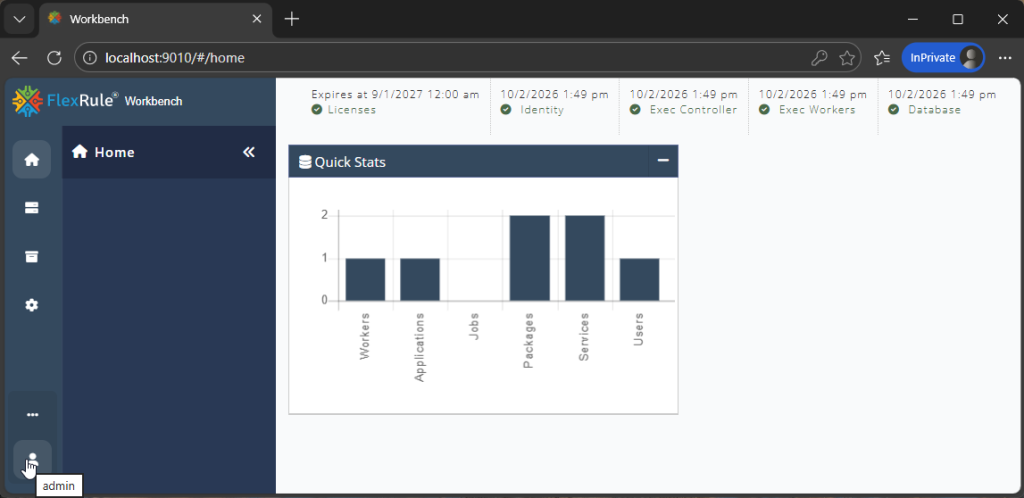
To sign out, select the “Sign Out” button on the toolbar at the bottom left of the Workbench view, see below showing the button.

Workbench Home
After you sign in to the system, you will see the home view of the Workbench, including the following main sections.
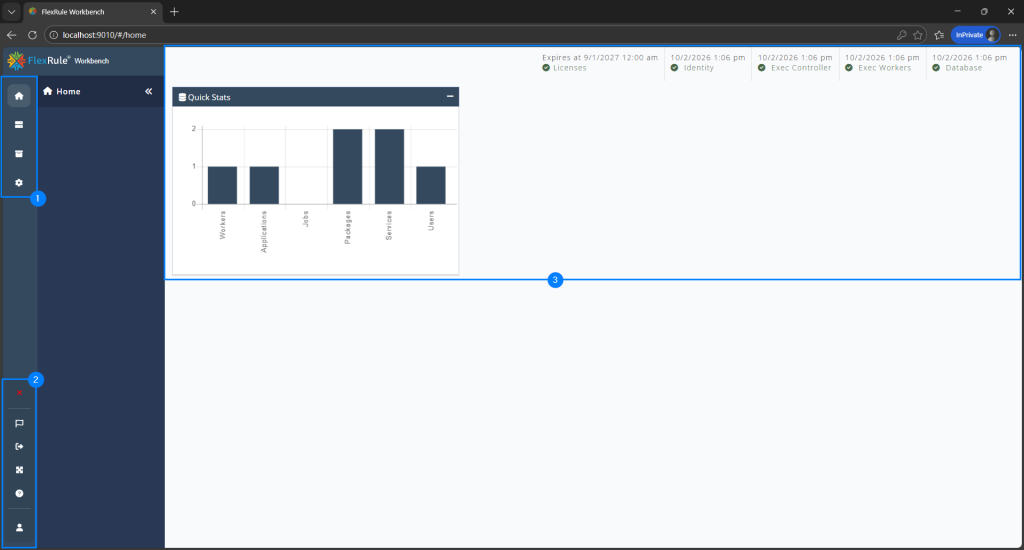
Navigation Menu
To navigate to different parts of the Workbench, use the left-hand side navigation:
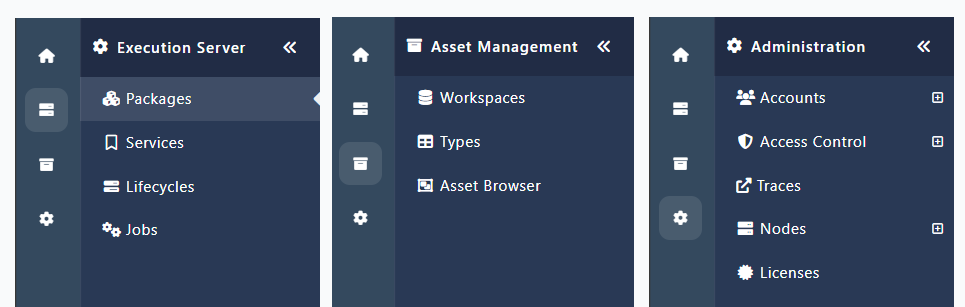
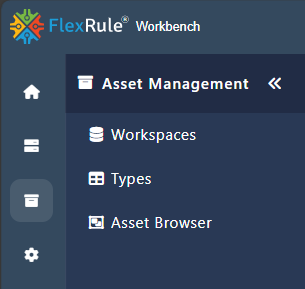
There are three main menu items in the navigation: Execution Server, Administration, and Asset Management.
Execution Server
The Execution Server menu items are related to any execution of deployed services. Items include Packages, Services, Workflows, and Jobs.
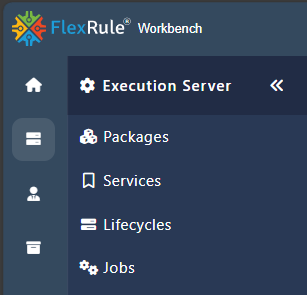
If you want to see the status of running services, workflows, and jobs, and test them, you can select the relevant options under this section. You can also edit the services and select which versions you want to run.
Asset Management
This section is for managing all Workspaces, Folders, Assets, and Objects in FlexRule Workbench.
Administration
This section is for administering all aspects of FlexRule Workbench.
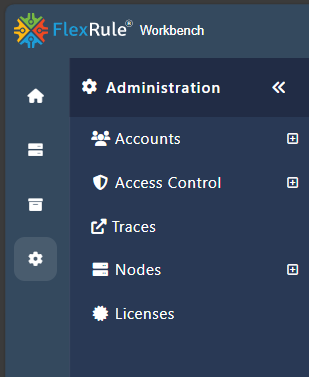
If you want to add, remove, or edit the users, applications, ExecutionWorker, and different roles, select the relevant options in this section. You can have full control over providing access to various users or applications.
See Access Permission to learn how to provide access to different packages and manage roles.
Toolbar
On the bottom left of the screen, you will see the toolbar:

The toolbar has the following buttons:
- Help website: This will take you to FlexRule Resource Hub, which is the technical documentation of FlexRule
- Fullscreen: Make the Workbench full screen in your Windows.
- Sign Out: Sign out from the workbench.
- Notifications: This shows the notifications related to the workbench

-Error
-Success
-Information
All messages usually have a title, a date/time stamp and a description.
The “Dismiss All” button clears the notification of window messages. Alternatively, you can click on the “X” button on the top-right corner of each message to remove a specific notice from the notification screen.
Summary
This will show the status and summary of FlexRule Open nodes, as well as the License and database status.
There is also a Quick Stats table giving a summary count of a range of ExecutionWorkers, account, and service deployments.