
◷ Reading Time: 4 minutes
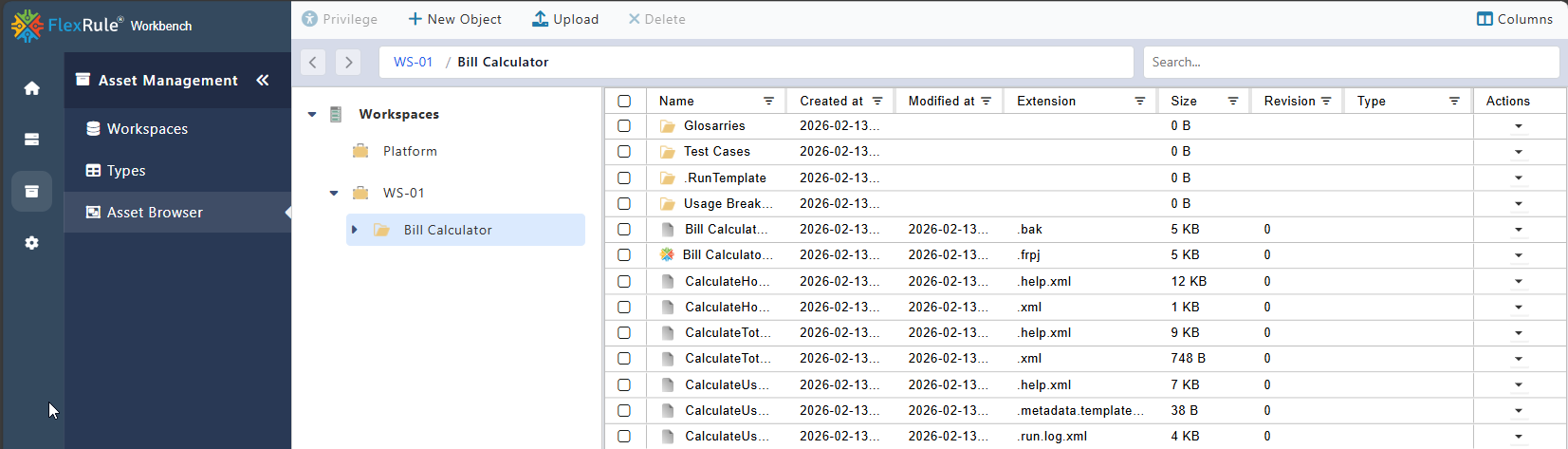
Users can manage all files within the Asset Browser.
The Asset Browser supports various file types, including media files, documents, databases, and more. It serves as a central repository for storing and organizing all assets, such as documents and system objects.
To access the Assets list, navigate to Asset Management → Asset Browser.
Upload Documents
To upload a document, click Upload in the top toolbar and select the file from your local computer. Then click Open to see the file in the workbench.

Create Object
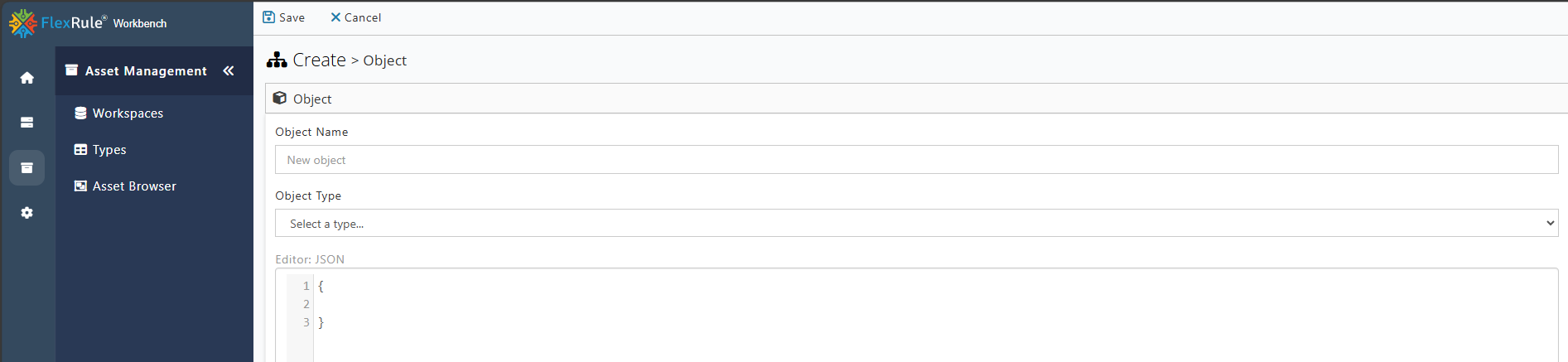
Creating a new object is possible at the folder level. Users can click New Object in the top toolbar, set the object name, select the type, and then start writing the object.

Assign a Privilege to a Folder or an Object
To assign a privilege to a folder or object, users can right-click on the folder or object and click Privileges.
Once the user clicks Privilege, the Privilege window opens, allowing them to create a new privilege for the folder or object.
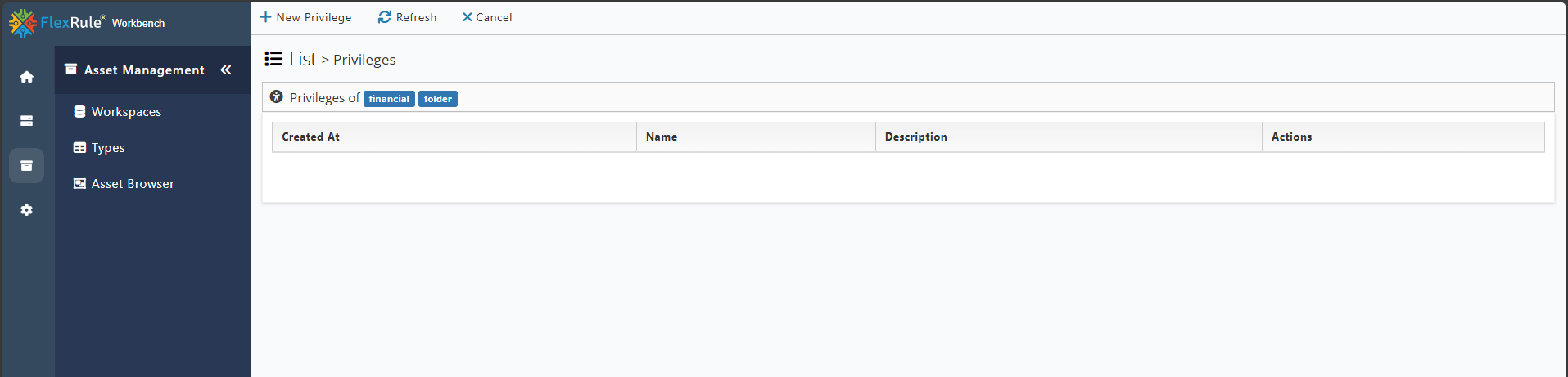
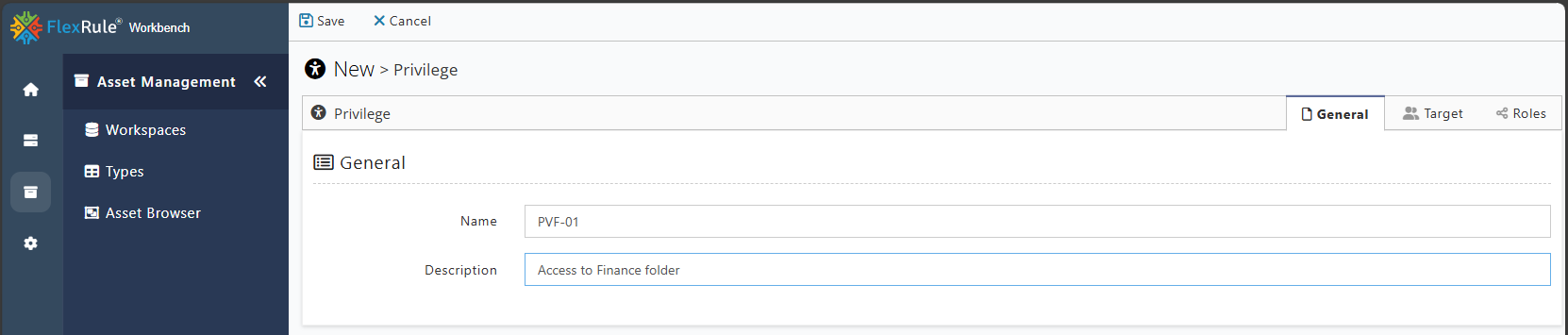
Click on the New Privilege in the top left corner to add the details of the privilege. On this window, there are three tabs: General Information, Target, and Role.
Add the name and description for the new privilege.
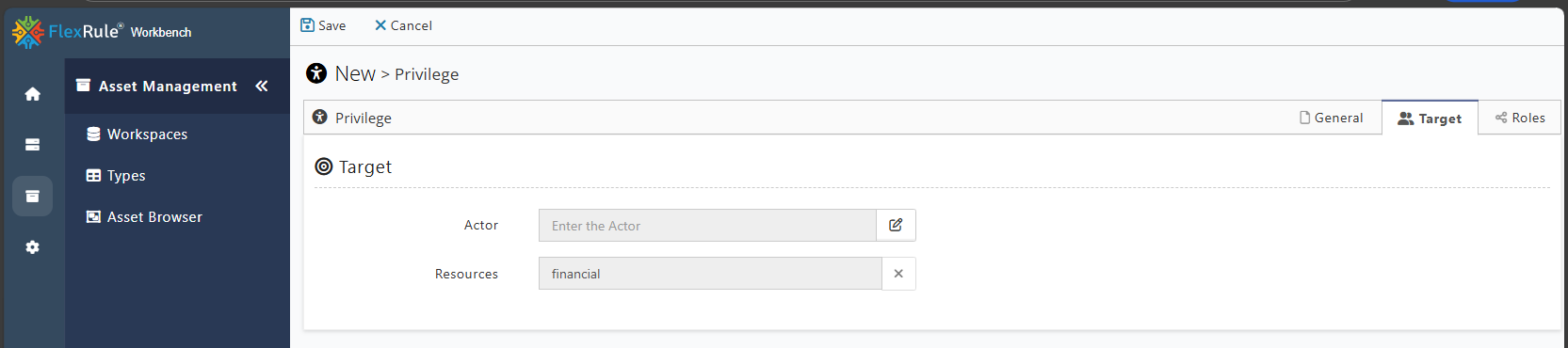
Determining the Actor for the privilege is on the Target tab window. The user can select actors between users and groups by clicking the pen icon next to the Actor. Selecting at least one Actor is required to create a privilege.
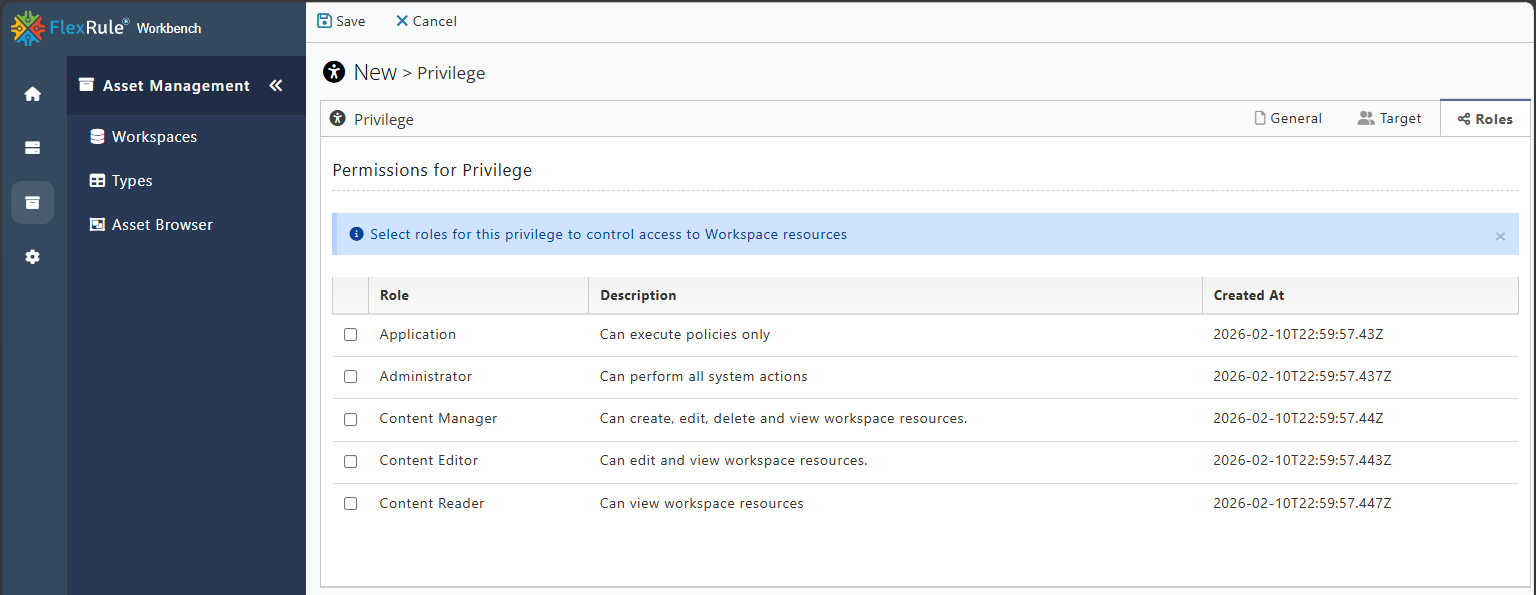
The user can select roles for the privilege on the Roles tab. By default, there are five different roles, while users can create new roles with different access by navigating to the Administration--> Access control --> Roles.
View and Edit a File
To view or edit a file, users can click on the drop-down on the right side and select the action.
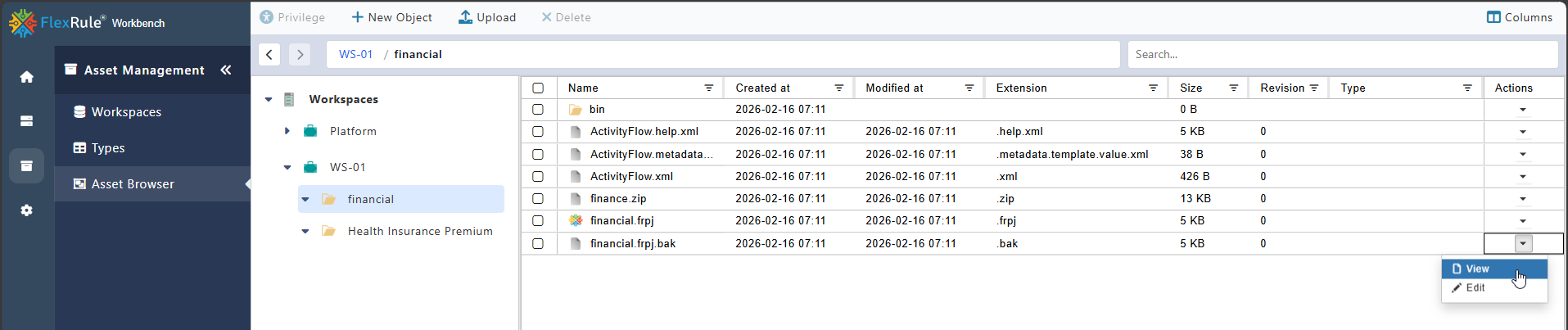
Once the user clicks View, the file is shown.
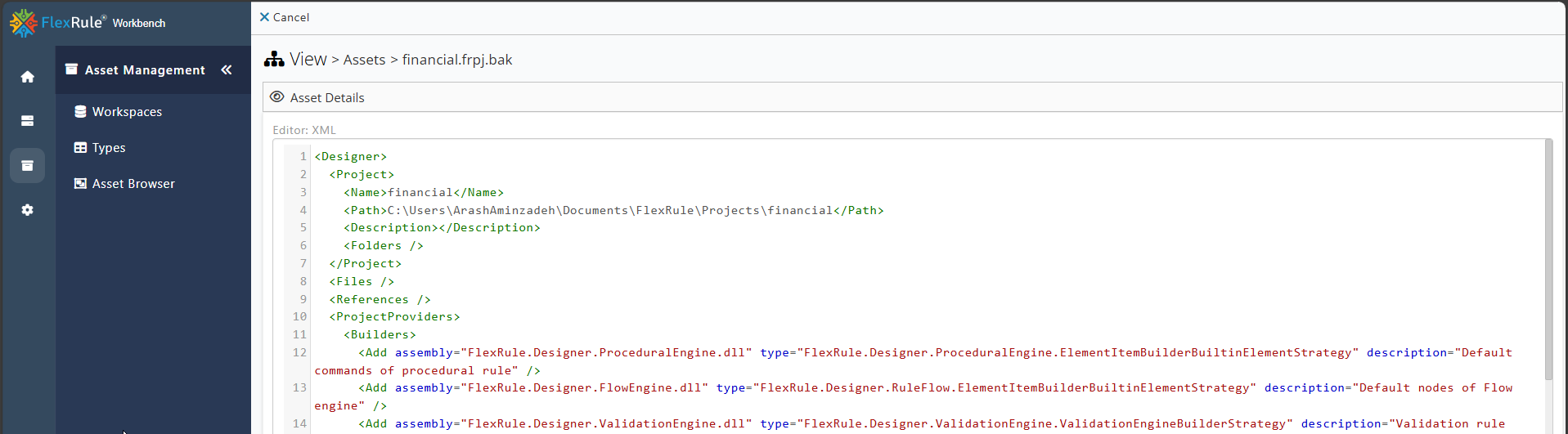
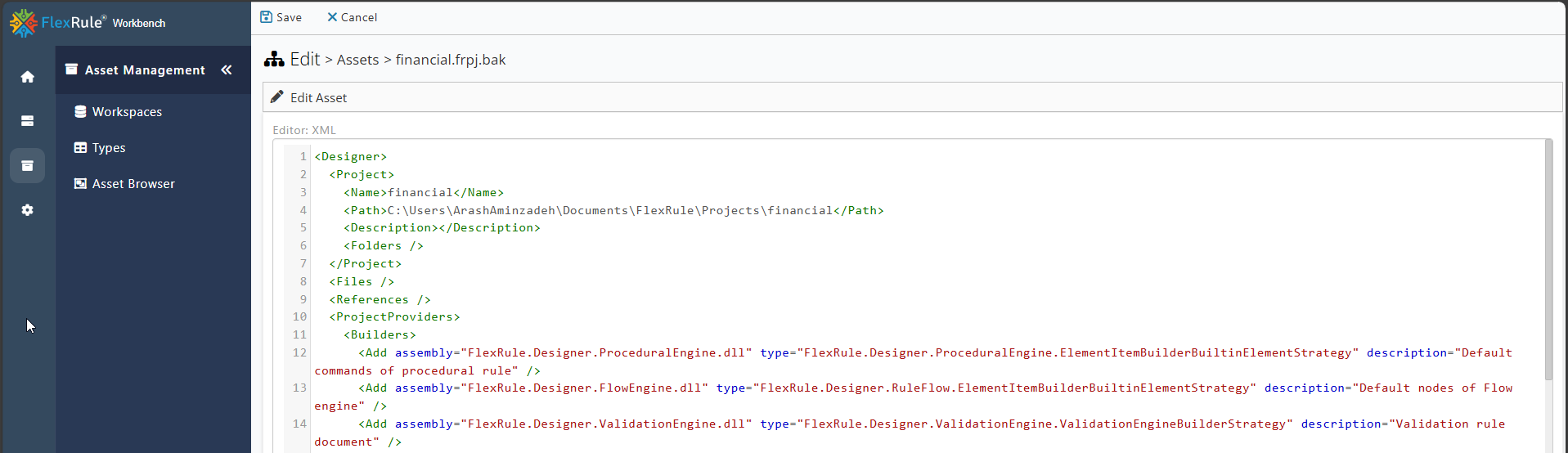
To edit a file, the user can click Edit. After finishing the edit, the user can click on save in the top-left corner. The workbench validates the file based on its type, and if it is incorrect, the user receives an error.
Delete a File or Folder
To delete a file, the user can tick the boxes next to the files and click on the Delete button on the top toolbar.
