
◷ Reading Time: 9 minutes
Upgrading FlexRule products’ versions is essential for improving performance, and accessing the latest features we introduced. In this documentation, we’ll guide you through the process of upgrading from version 8 or 9 to version 10. Let’s get started!.
Upgrade FlexRule Designer
To upgrade FlexRule Designer to version 10, the user needs to contact FlexRule Support to ensure associated emails are in the licensing system. To do so, expand the green question mark at the bottom right of this page and select “Support.”

Upgrading from Designer 8 to Designer 10
1. Ensure you can meet the minimum requirements
- OS: Windows 10 or Later
- .Net Framework: 8.0
2. Log in to your portal and download Designer
- Login to your user portal at http://my.flexrule.com/
- Go to the Downloads section

- Select “Download Now” under version 10 for Designer. This is the only download required from the user portal. Unlike 8, Designer 10 does not require a license file.

3. Run the Installer
- The downloaded installer name is FlexRuleDesigner<version>Setup.exe
- Double-click that to install Designer and proceed until its successfully installed.
4. Update Runtime
- Open the newly installed Designer 10
- Enter in your FlexRule login credentials
- Create a new project more info on creating your first project or your existing project from “Open a Project”.

- In the new project in the top ribbon menu go to Project>Properties
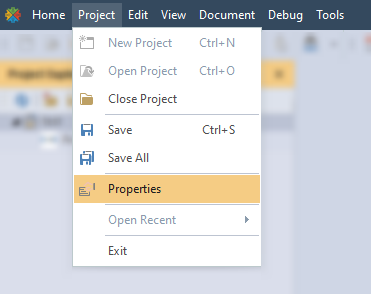
- Select the Runtime Tab of the Propeties window.
- Click “Download FlexRule Runtime NuGet,” and then click “Download”

Now Designer is upgraded to version 10!
5. Uninstall Designer 8
You can uninstall Designer 8 by double-click the uninstall executable at the install location, by default:
C:\\iktea\AppData\Local\Programs\Pliant Framework\FlexRule Designer\8.x.x
Upgrading from Designer 9 to Designer 10
1. Ensure you can meet minimum requirements.
- OS: Windows 10 or Later
- .Net Framework: 4.7.2 => 8.0
2. Log in to your portal and download Designer
- Login to your user portal at http://my.flexrule.com/
- Go to the downloads section
- Select “Download Now” under version 10 for Designer.
3. Run the Installer
- The downloaded installer name is FlexRuleDesigner<version>Setup.exe
- Double-click that to install Designer and proceed with installer steps until its successfully installed.
4. Update Runtime
- Open the newly installed Designer 10
- Enter in your FlexRule login credentials
- Create a new project more info on creating your first project
- In the new project in the top ribbon menu go to Project>Properties
- Select the Runtime Tab of the Propeties window
- Click “Download FlexRule Runtime NuGet,” and then click “Download”
Now Designer is upgraded to version 10!
5. Uninstall Designer 9
To uninstall Designer 9 double-click the uninstall executable at the install location. You can find the install location by going to the About section in the Designer 9 start screen and selecting, “Open Installation Folder”
Upgrade FlexRule Server
Due to the latest changes in version 10, there is no option for a manual upgrade and a new clean install will be required.
Before installing, contact support to get the server and runtime licenses for version 10. These are different licenses from version 8 or 9. If upgrading, the machine serial number should already be in the system. If installing server for the first time on the machine please follow this article: Installing FlexRule Server On-Premise Windows
To contact support expand the green question mark at the bottom right of this page and select “Support.”
Once you have the runtime and server licenses for version 10, follow these steps to upgrade from server versions 8 or 9.
1. Log in to your portal and download Server
- Login to your user portal at http://my.flexrule.com/
- Go to the downloads section
- Select “Download Now” for Server version 10
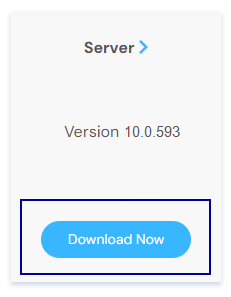
2. Install FlexRule Server
- Follow the typical installation process for FlexRule Server 10
- At the “Migration of Database” step select to “Migrate the existing database to the new version.”

Upgrade CLI
If upgrading from FlexRule products version 8, the FlexRule Designer command line options have been replaced by FlexRule CLI. If upgrading from version 8 products, follow the installation for CLI
CLI can also be used to install runtime version 10
Upgrading from CLI 9 to CLI 10
1. Ensure you are able to meet following requirement
- .Net Framework: 8.0
2. Download CLI 10
- Login to your user portal at http://my.flexrule.com/
- Go to the downloads section
- Select “Download Now” for CLI version 10
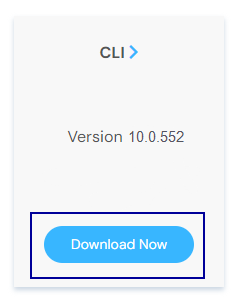
3. Install CLI 10
- Install the downloaded executable FlexRuleCLI<version>Setup.exe
- Follow either CLI Manual Installation or CLI Silent Model
4. Uninstall CLI Version 9
To uninstall version 9, navigate to the install directory and double click the uninstall executable. The default location is C:\Program Files (x86)\FlexRule\CLI\<version>\