
◷ Reading Time: 7 minutes
Launch the Package Browser
You can use the Package Browser to browse the logic files of all decisions under a package. To open, select Browse Logic Files from the Actions dropdown in the Packages menu list view.
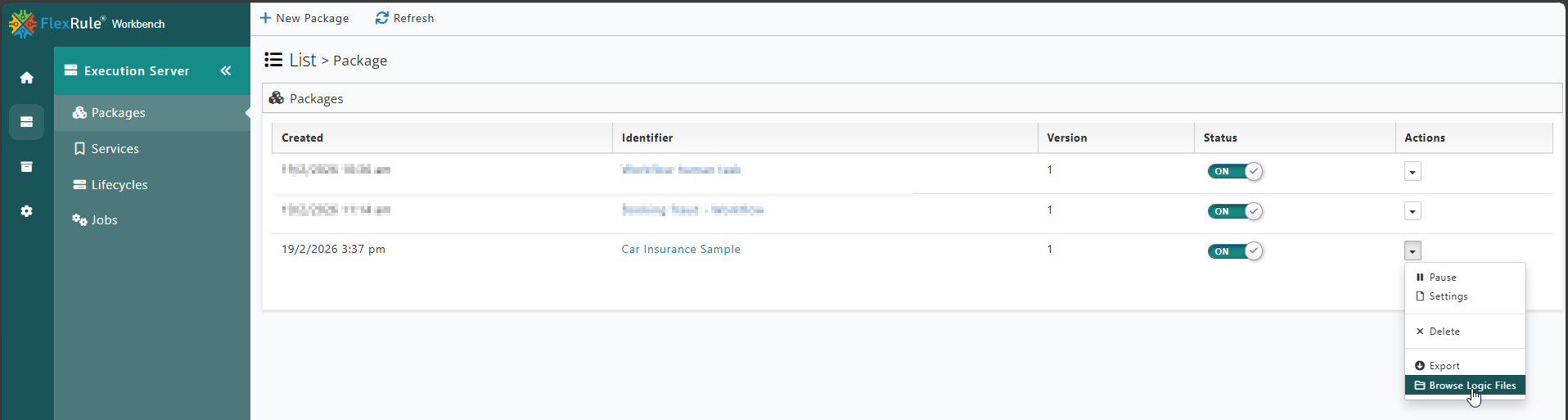
Browse Logic Files
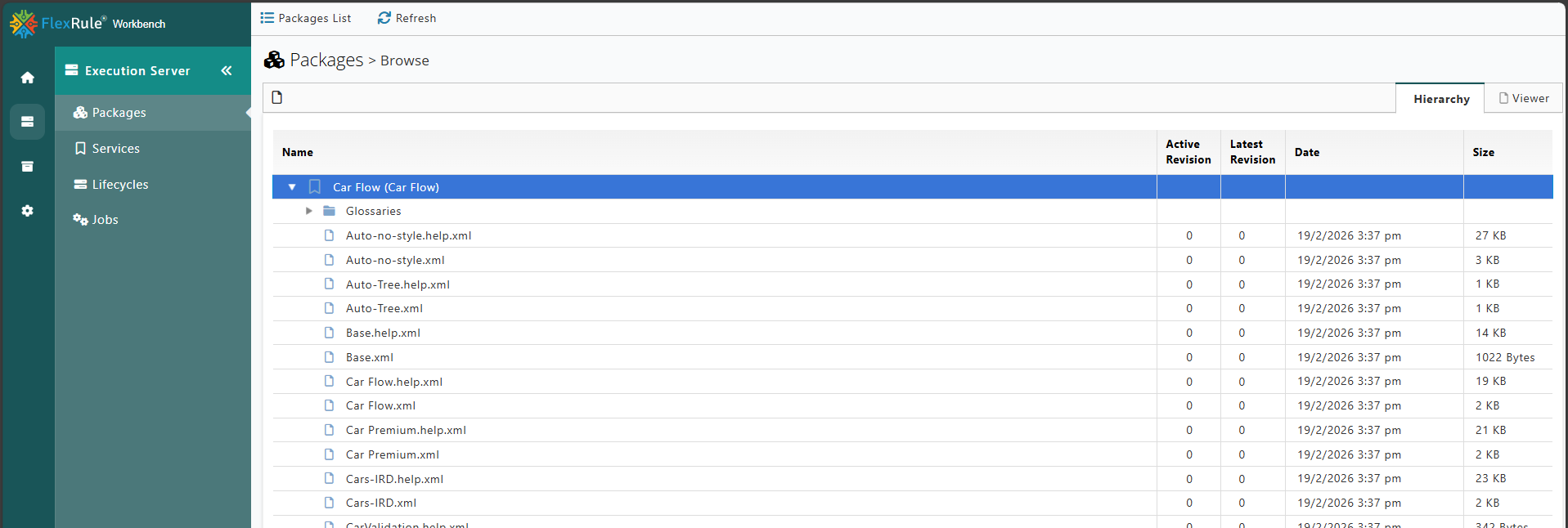
When browsing a package, a list of files and folders of the package will be shown in a tree structure. The root of a tree is one decision within the package.
Sections
The package browser has two main tab sections:
- Hierarchy: This shows a list of all decisions as the root and all of the folders and logic files in tree view related to the parent decision.
- Viewer: This shows different viewers for a file when it is loaded.
Versions
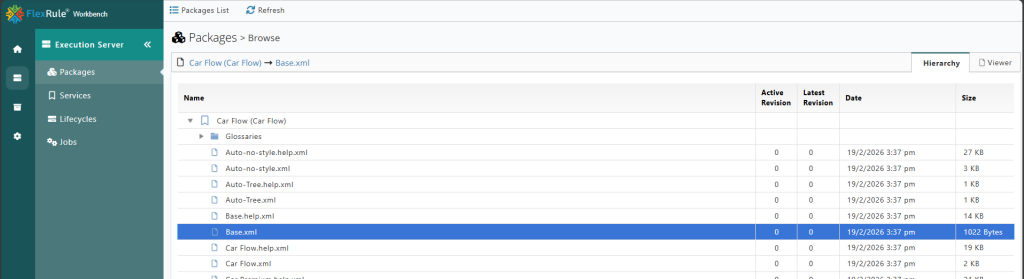
The logic documents can be edited directly in Workbench. Once a logic document is edited and then saved, a revision number is automatically associated to it. Logic documents can have multiple revisions and in the hierarchy list view table you will see two columns, Active Revision and Latest Revision.
You can pin down a specific version of a file on a service, so when the file is updated, your service endpoint behavior still works with the pinned version. Once you are sure about the change, then you can promote it to the new version.
Active Revision
Active Revision is the revision of the file that will be used every time a request comes for the execution of a decision.
When a logic file is changed, the Active Revision automatically increases to match the latest revision of the logic file. Alternately, if a specific revision in pinned then that will be the Active Revision.
Latest Revision
When updating and saving a logic file via the Package Browser, it is automatically assigned a revision number incremented from the last revision.
Update Content
Logic files can be edited directly in Workbench which allows quick and direct updates to already deployed packages.
XML Editor
By default, all the logic files will be loaded into an XML editor.
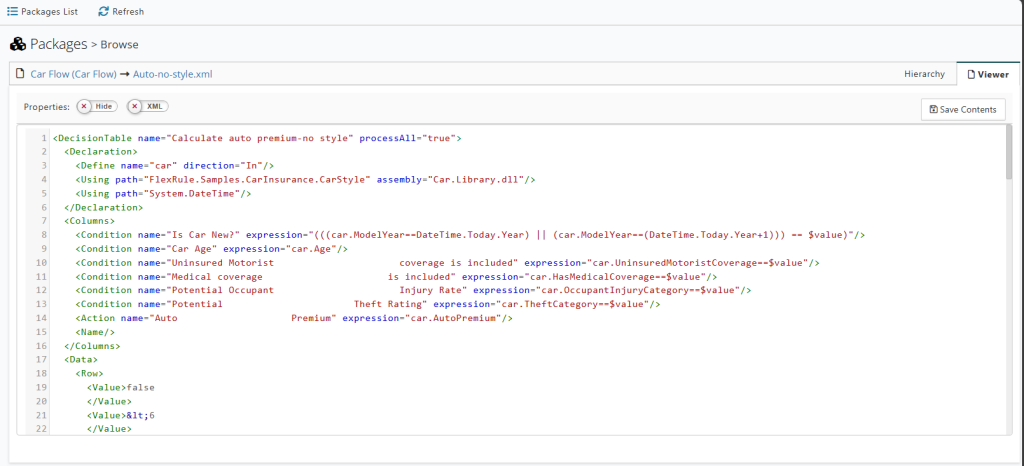
When this XML editor is active you can simply press to update the content of the logic file. Note the revision of the logic file will be updated.
Visual Editor
There are various types of logic files and some of them provide an inline visual editor that allows you to display the logic files in native form.
The files that have an inline viewer display an additional toggle Viewer/XML that when toggled to Viewer will display the file in native form. If this button does not exist, means the logic file does not have a visual editor.
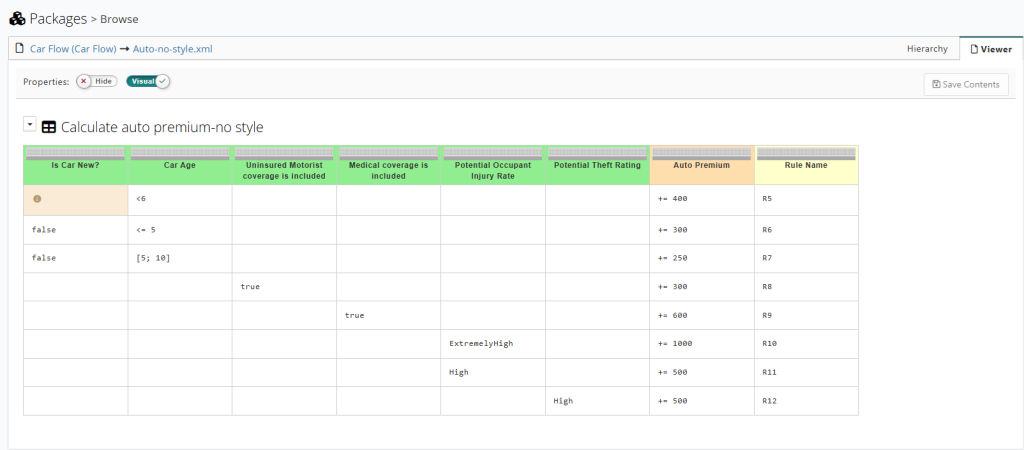
The following types of logic files provide a visual editor:
- Decision Table
- Decision Graph
- Natural Language
Decision Table Editor
Additional to native viewer, the Decision Table files allow some basic editing functionality in the native view.
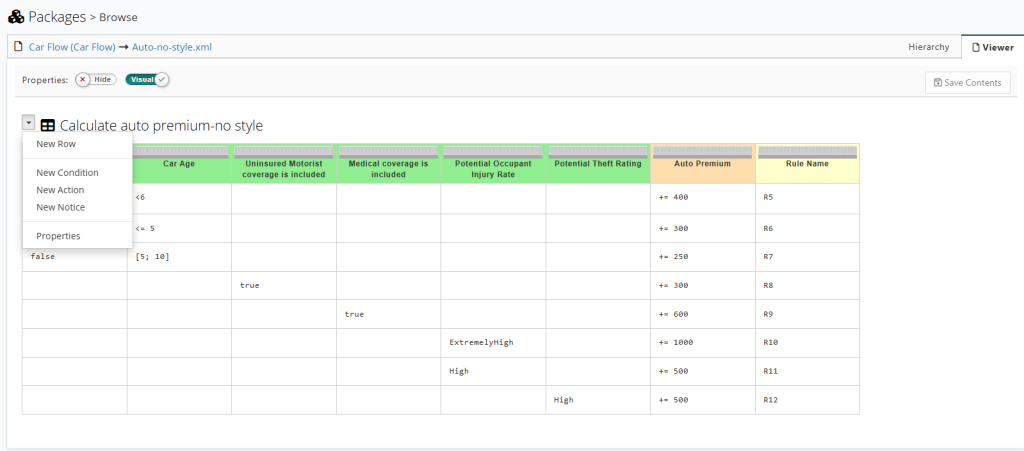
With this visual editor functionality on a Decision Table you can:
- Change the order of columns and rows by dragging and dropping
- Add new Rows and Columns
- Change Decision Table properties
- Manage input and output parameters
- Change the name of the decision table
- Manage decision table columns
- Delete columns
- Modify columns expressions
Steps to Add or Modify Decision Table
In order to build a decision table in visual mode, you need first to switch to Visual. They need to make sure there are columns. Please follow the following steps:
- Set the decision table header by going to “Properties” and setting a name
- Add a new column
- Add a new row and add the value
For further details on editing a Decision Table see the Decision Table Editor guide.
If you require more advanced editing capability please use FlexRule Designer to edit the Decision Table.
Properties
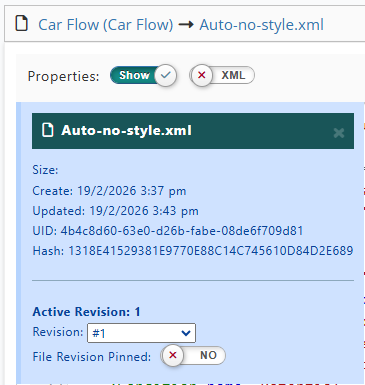
A logic file has certain properties that can be viewed by the property modal. To access this toggle the Properties option to Show.
Information
In the modal there is some information associated with a file:
- Filename
- Size
- Created date
- Updated date
- UID
- Hash
Please note, by changing the revision number in the list you can navigate to different revisions of the logic file.
Active Revisions
The modal will display the number of active revisions for the file along with a dropdown to select which revision to display.
You can also choose to pin any specific revision version to enable it as the version that will be used during execution. Select the revision version you would like to be the executable version and then toggle the File Revision Pinned option to Yes.
This feature enables you to keep updating and revising changes on a logic file, once you are certain about the change you can Pin that revision as the active version for execution.