
◷ Reading Time: 5 minutes
FlexRule Server enables seamless authentication for FlexRule Server Workbench users with Azure Active Directory (Azure AD) credentials.
In order to set up Azure AD authentication, you have to set up the Azure APP registration in your Azure portal first and then the FlexRule Server installation setup. Lets have a look on each step in detail.
Azure App Registration Setup
Configure Azure AD to allow FlexRule Server Workbench to authenticate users.
Step 1: Register a New Application in Azure AD
- Navigate to the Azure Portal (portal.azure.com).
- Go to Azure Active Directory → App Registrations → New Registration.
- Name: Enter
FlexRule Server Workbench(or your preferred name). - Supported Account Types: Select “Accounts in this organizational directory only (FlexRule only – Single tenant)”
- Select a platform: Single-Page application (SPA)
- Redirect URI: Set to
http://[your-flexrule-workbench address]/ssoAzure.html(replace with your FlexRule workbench address).
- Name: Enter

You can navigate to Manage – Authentication to make sure your redirect URL is eligible for the authentication code flow.

And also make sure “ID tokens” is checked under Implicit grant and hybrid flows”
Step 2: Note Critical Azure AD Details
Navigate to App Overview.
Collect the following values for Part 2:
- Application (Client) ID: Found in the app registration overview.
- Directory (Tenant) ID: Found in the app registration overview.

FlexRule Server Installation Settings
During New Installation
- Run the FlexRule Server Master Management Configurator.
- When prompted, provide:
- Azure AD Client ID: From Part 1- Azure App Registration Setup.
- Azure AD Tenant ID: From Part 1- Azure App Registration Setup.
- Complete the installation.

For Existing Installations
Use the FlexRule CLI to add, update, remove Azure AD credentials to a running instance:
Replace <ClientID> and <ClientSecret> with your Azure AD app values in the following scripts.
Add
FRS.exe config --sso "add" --azure --clientid <your client ID> --tenantId <Your tenant ID>Update
FRS.exe config --sso "update" --azure --clientid <your client ID> --tenantId <Your tenant ID>Remove
FRS.exe config --sso "remove" --azureRestart the Server
Login with Azure AD
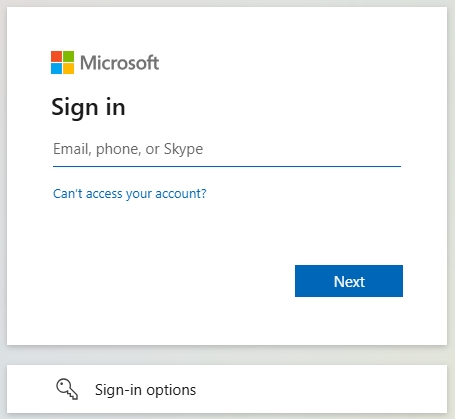
Once you run FlexRule Server, login to Workbench using “Sign in With Azure”.

Then, follow the steps to give credentials for your Azure account.

Access Control for Azure AD Users
By default, Azure AD users have “External User” role in FlexRule Workbench. This user role doesn’t have any permission by default. Workbench Admin should grant the necessary permission to this user role based on the intention.
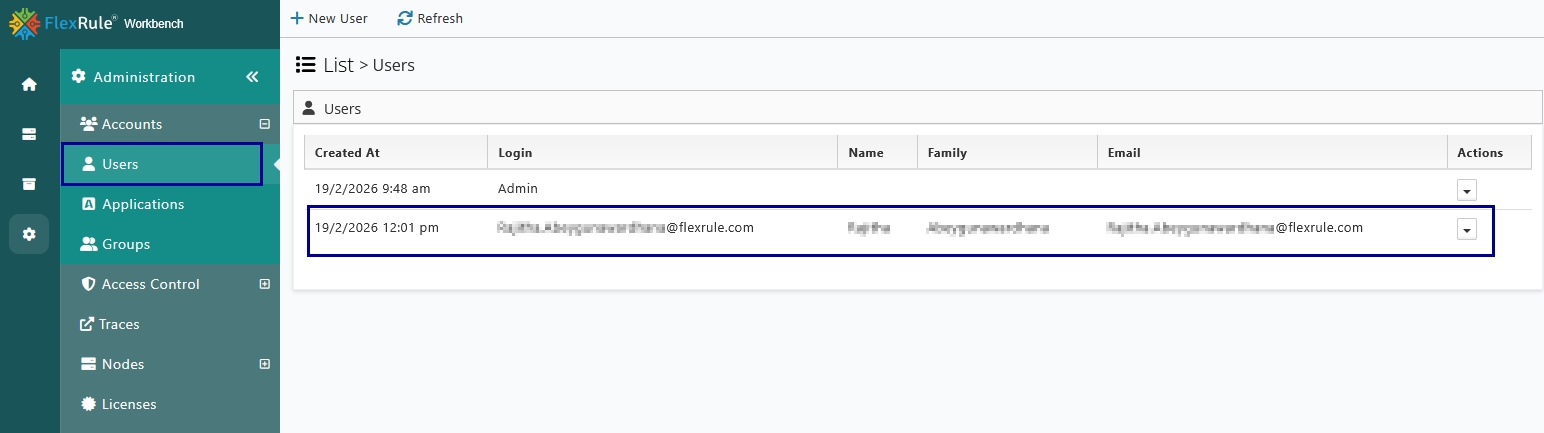
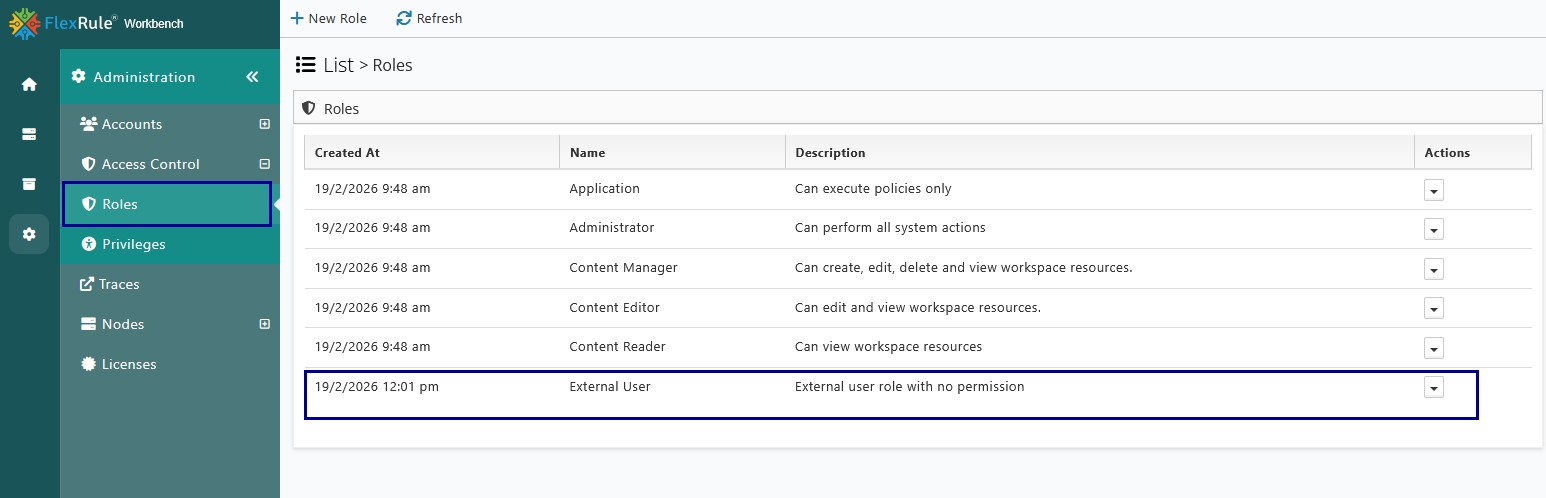
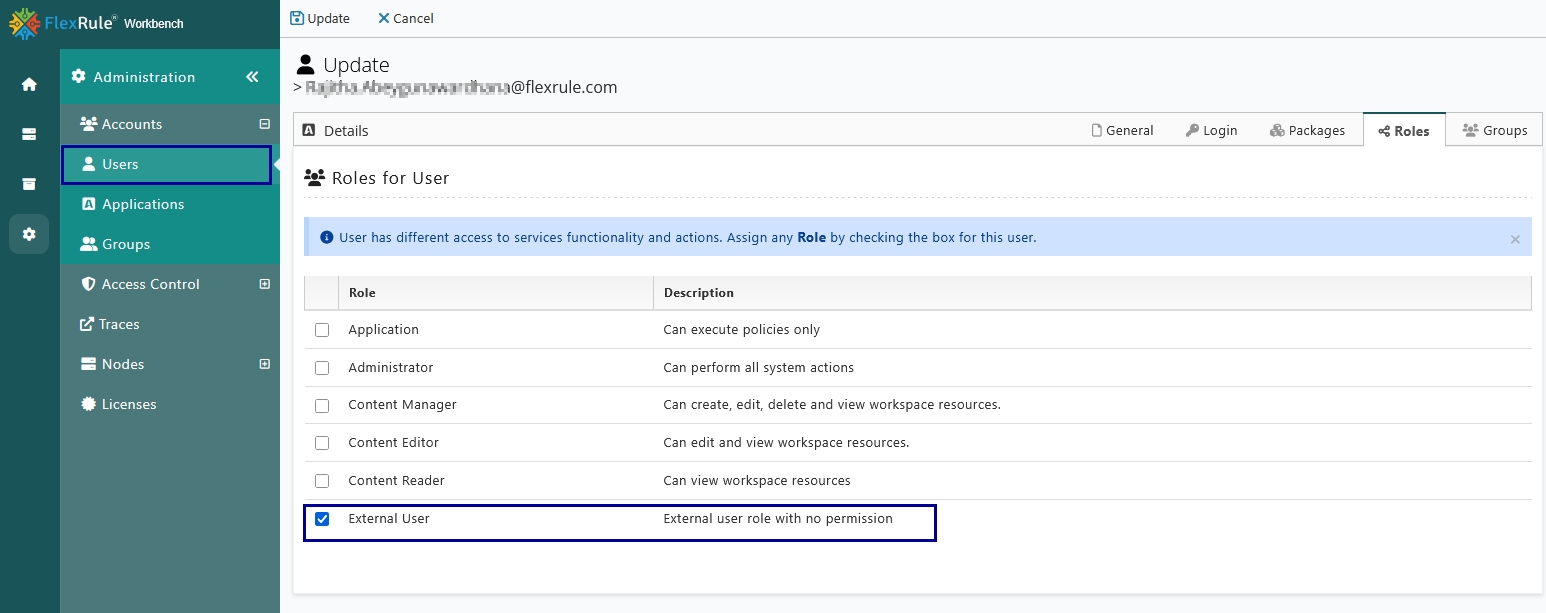
To execute services, an admin must grant relevant permissions as explained in here.