
◷ Reading Time: 10 minutes
In this sample project, we will explain how FlexRule Designer can be used to streamline the car insurance premium calculation while determining the eligibility score for each applicant.
Scenario
Imagine you’re applying for car insurance. The insurance company has a system that considers two main things:
- Information about you and your car: This includes things like your age, driving history, the make and model of your vehicle, and how much you typically drive.
- Your existing customer status: Are you a new customer, or have you been with the company before?
Based on this information, the system does two things:
- Figure out what category you fit into (segmentation): This helps the company group similar customers together.
- Calculates your eligibility score: This score reflects how likely you are to file a claim (get in an accident and need repairs).
Depending on your eligibility score, the system takes one of two paths:
- The system can automatically calculate your car insurance premium if your score is low (low risk). This is because you’re considered a safe driver.
- If your score is high (high risk), the system might need a human to review your application before calculating your premium. This is because there might be other factors to consider.
Lets take a look on these two main steps and how we can implement this scenario in FlexRule Designer.
Determine Eligibility Score
To determine eligibility score, it has 2 main steps:
- Determine Client Segment
- Calculate Eligibility Score
Determine Client Segment
The decision model starts by categorizing you based on your existing customer information retrevs from the database and sort them based on their sum amount. This helps the insurance company tailor their approach to different customer groups. There are two main categories used in this example:
- Elite Clients: This is a special group typically reserved for the company’s top 1% of spenders. They might receive benefits like premium discounts.
- Preferred Clients: This is the other category that customers who has more than 2 insurance products including vehicle, life and retirement insurance..

Calculate Eligibility Score
Here’s how the system calculates your eligibility score, reflecting your driver risk.
There are two main parts to this process:
- Automobile Eligibility: This considers the risk associated with your car itself.
- Driver Eligibility: This takes into account your driving history and other factors.
Automobile Eligibility:
- Risk Rating: The system assigns your car a risk rating based on two things:
- Potential Occupant Injury Category: This considers how safe your car is in the event of an accident.
- Potential Theft Category: This reflects how likely your car is to be stolen.
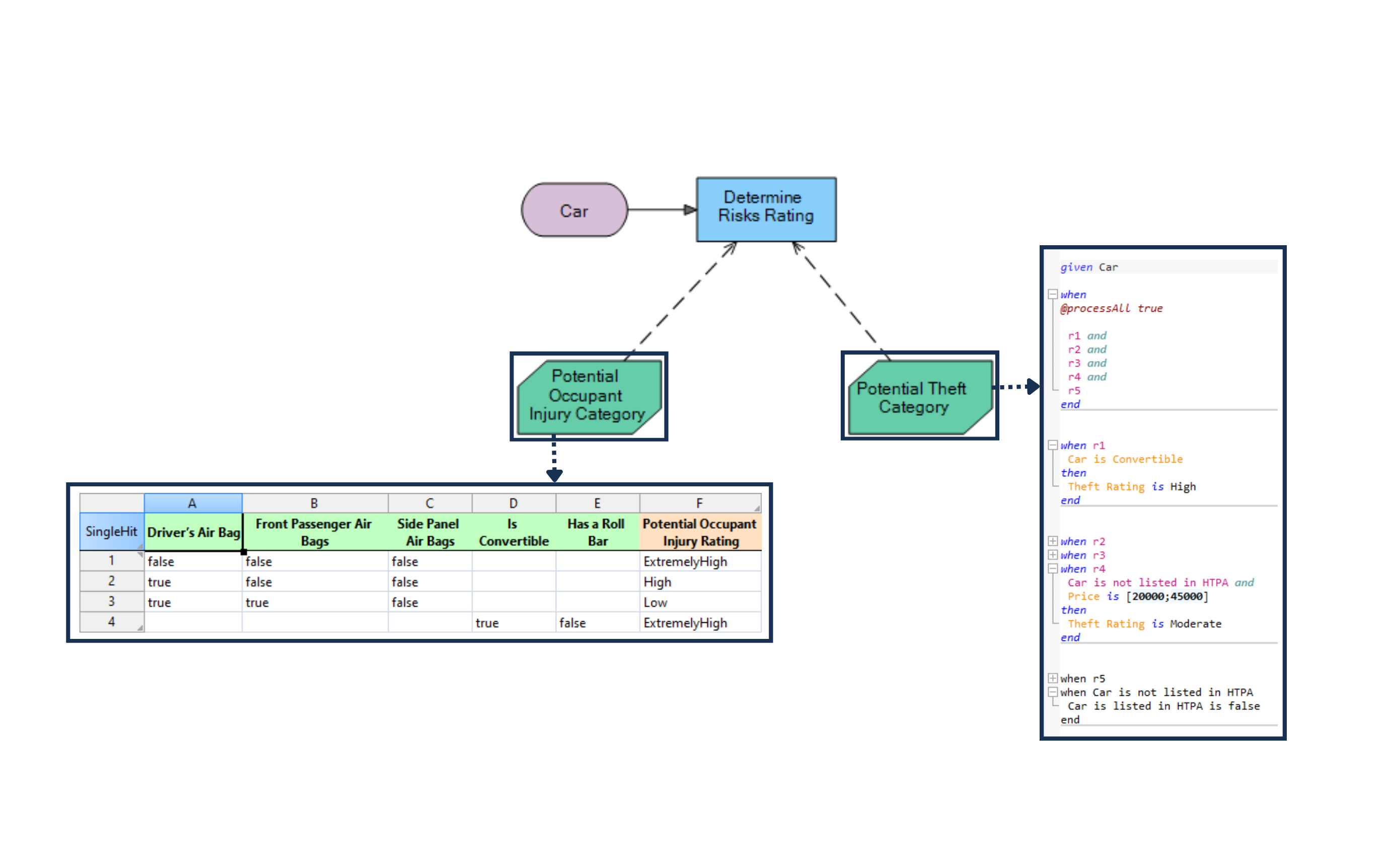
Once Potential Occupant Injury Rating and Potential Theft Rating has determined, next decision will use those two values to determine Automobile Eligibility.

Driver Eligibility:
- Driver Age Category: Younger drivers are typically considered higher risk.
- Driving Record History Category: This looks at your driving history, including any accidents or violations.
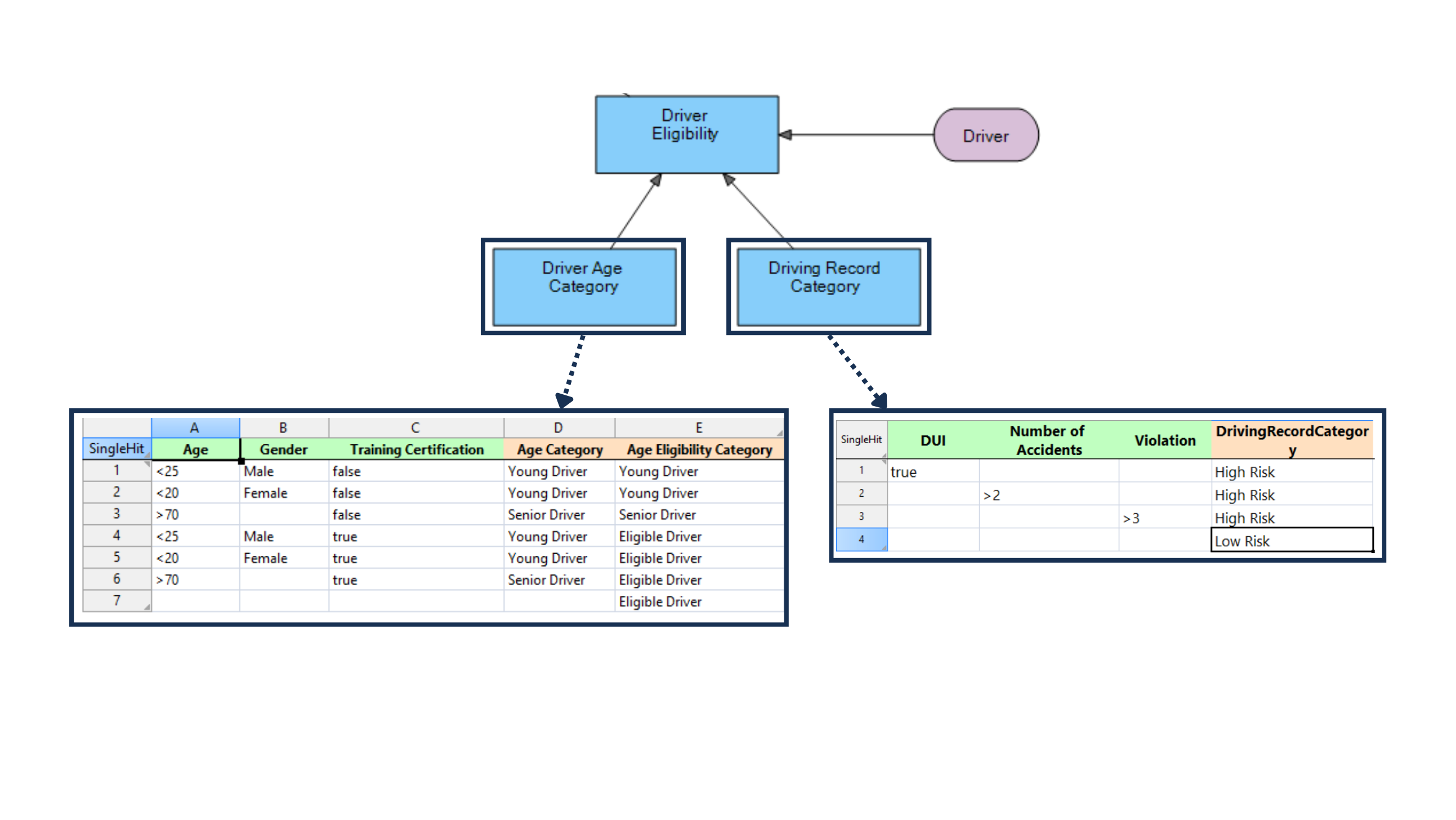
As the big picture of the Calculating Eligibility Score:

The Final Score:
Once both your car and driver eligibility are categorized, our model combines this information to calculate your overall eligibility score. This score is a key factor in determining whether your car insurance premium will be calculated automatically or forwarded to human review.

Calculate Auto Premium
If your eligibility score indicates you’re a lower risk driver(< 100), the system can likely calculate your premium automatically. Here’s what it considers:
- Car Premium: This takes into account factors like:
- Car type (e.g., sedan, SUV)
- Car age
- Injury rating
- Theft risk
- Whether you choose additional coverage (uninsured motorist, medical)
- Driver Premium: This considers your risk as a driver, including:
- Age group
- Driving history (accidents, violations)
- Location (where you live)
- Marital status (in some cases)
Combining Costs and Applying Discounts:
Once both car and driver premiums are calculated, the system combines them. Then, it factors in any potential discounts:
- Car Condition Discount: This considers factors like your car’s safety features and theft protection to potentially lower your premium.
- Market Segment Discount: This discount might be applied based on your client category (e.g., Elite Client).
Final Step: Premium After Discounts
Finally, the Discount decision subtracts any applicable discounts from the combined car and driver premiums to arrive at your final car insurance premium.

Overall Model
In order to integrate these steps together, we have used two main decision of Determining Eligibility Score and Calculate Auto Premium with a decision.

Workflow
If your eligibility score is higher than 100, it indicates a higher level of risk. In this case, your application may require further review before your premium can be calculated. This has been addressed using Work Flow as follows.

If your eligibility score is greater than 250, your application will be rejected with a notification considering the highest level of risk.
Database Setup
Install MS SQL and MS SQL Server Management Studio.
- MS SQL (Express edition)
- MS SQL Server Management Studio
Once installed, open MS SQL Studio and run the following database script to create the database and tables.
Change Database Server Credentials
Once you run the database scripts and successfully create all the tables, you need to add your database server credentials to the model.
To do that navigate to the Glossaries folder in the model and open the BusinessFormulas.xml.

You can double click on the expression against Database and change the credentials as follows.
If you use Server Authentication
- data source: Your database server name. If it is mssql server, you may not need to change it.
- user id: Your SQL server authentication login
- password: Your SQL server authentication password
Example:
"data source=.\\SQLEXPRESS;user id=sa;password=123;initial catalog=Auto-Insurance;Persist Security Info=true"If you use Windows Authenticaion
Example:
"data source=.\\SQLEXPRESS;integrated security=SSPI;initial catalog=Auto-Insurance"How to Run the Project
Open the AutoPremiumFlow.xml and navigate to the given run templates and then you can choose run or debug option from there.

Test Cases
You can also run the defined test cases by navigating Test Case folder and open the TestCase.xml. Select the test case section and click on Run Tests.

Then you can see the test results as follows.

Video Description
Download
Use the attachment at the end of the page to download the sample project.