◷ Reading Time: 7 minutes
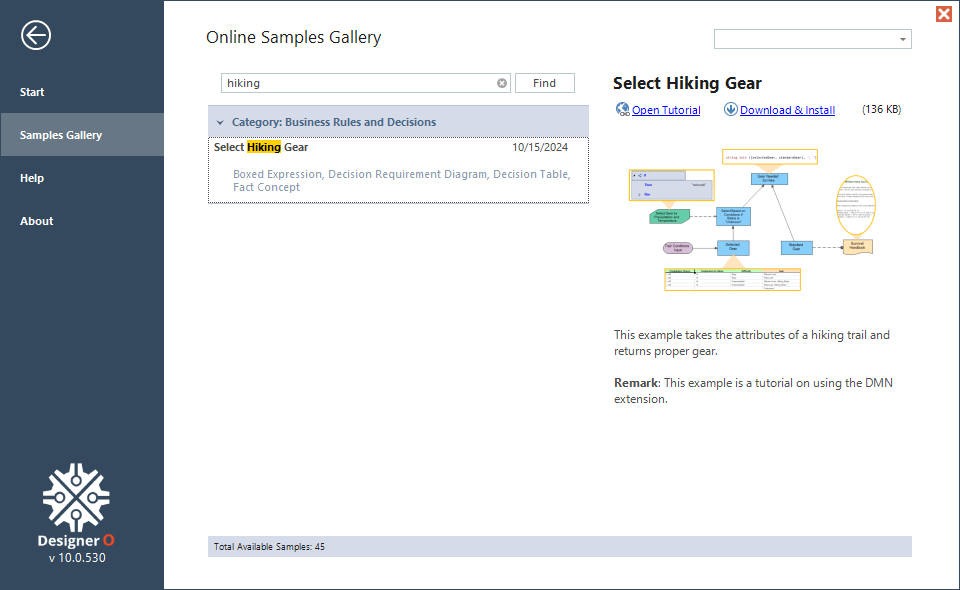
This project uses models built with the DMN extension to select hiking gear based on the weather and difficulty of a trail. It also selects default hiking gear based on a knowledge source (a hiking survival manual).
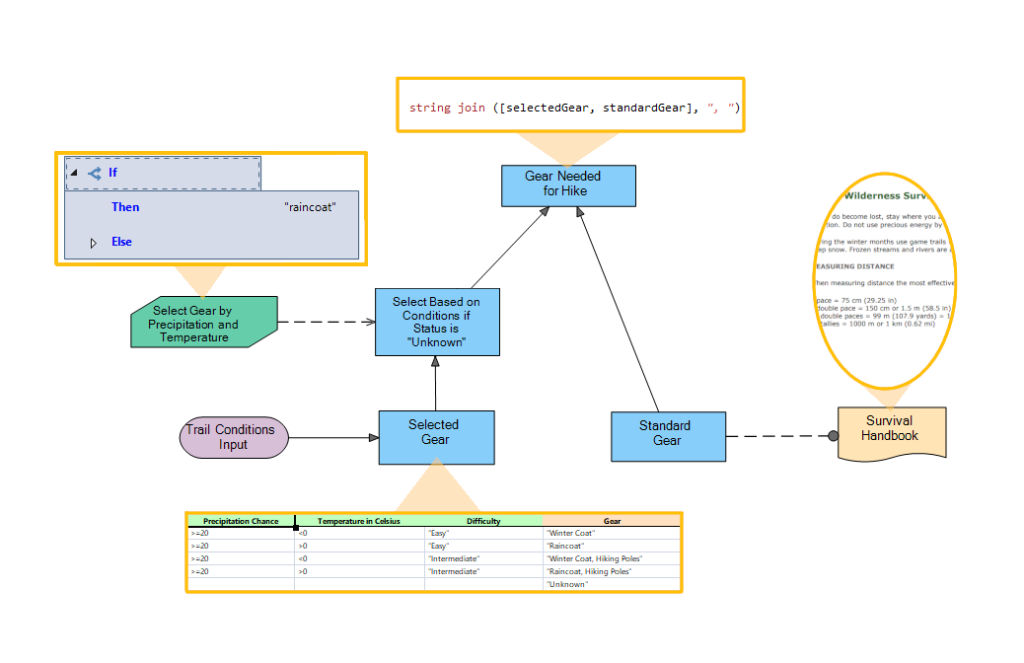
The project consists of a DRD that uses a Decision Table, Conditional Boxed Expression, and FEEL expressions to determine a final list of gear needed for the hike.
Running the Sample
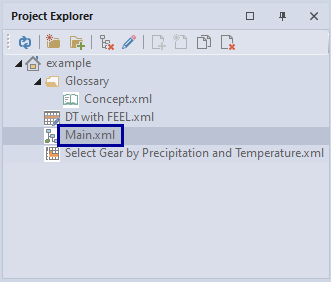
1. Open the DRD Main.xml
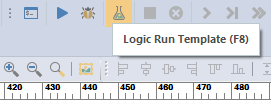
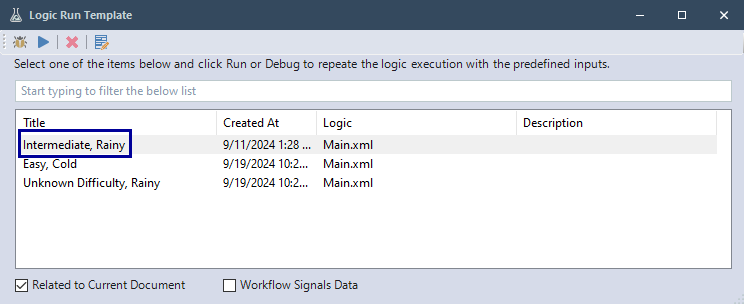
2. Click on Logic Run Template.
3. Select the template: Intermediate, Rainy
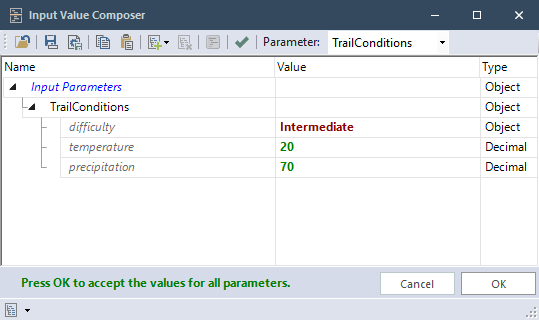
This template will use these input values:
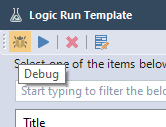
4. Click Debug
5. Click Step In to go step by step
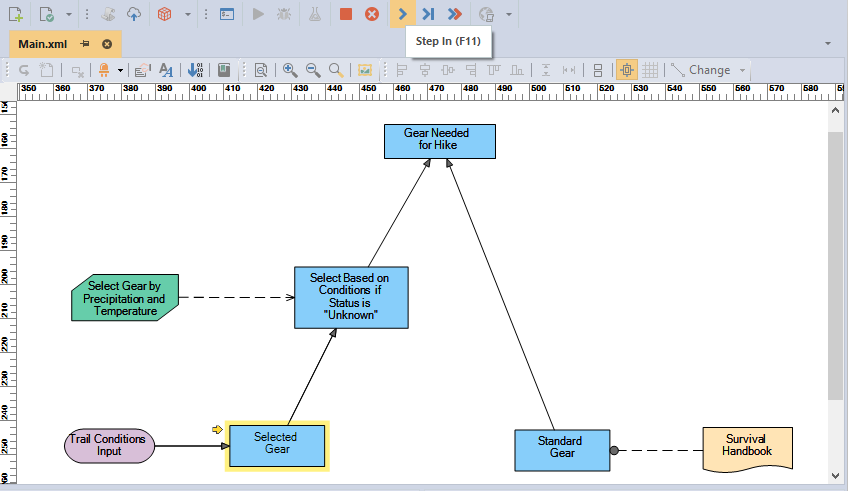
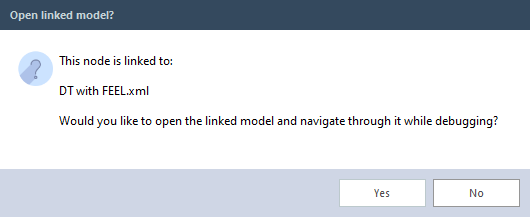
6. Select “Yes” when it asks to open the linked model, then continue to Step In to see which condition of the decision table is met.
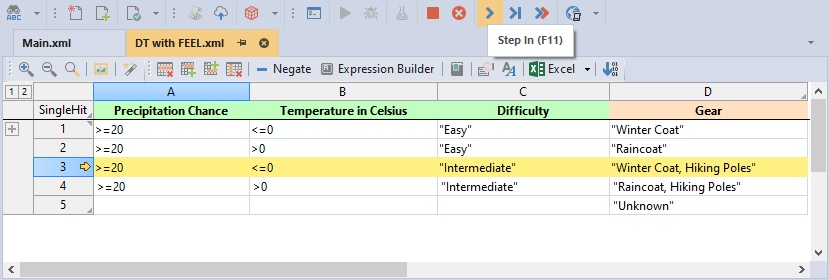
7. When a row is highlighted in yellow it is about to be executed, when green the condition has been met.
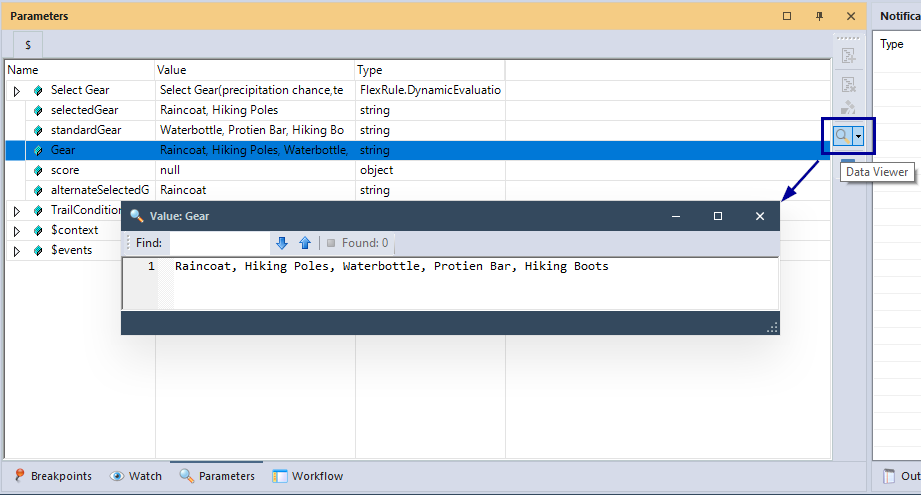
7. Keep stepping through until the final decision of the DRD and the project execution is finished. You will see the output under Parameters window. The Gear parameter contains all gear needed for this hike (below we click on the Data Viewer while Gear is selected to view the list).
Selecting Hiking Gear – Process Steps
The process of the this project consists of these main steps that coincide with the decision nodes in the DRD:
- Selected Gear Decision: Select gear based off input parameters
- Select Based on Conditions Decision: If trail difficulty parameter is missing, select gear based off weather conditions alone
- Standard Gear Decisions: Create a list of standard gear that should always be taken
- Gear Needed for Hike Condition: Combine list of standard gear and selected gear for output Gear parameter
Project Description
The Selecting Hiking Gear project contains the following files:
DRD (Decision Requirement Diagram)
- Main.xml: Shows the higherarchy of four decision nodes, Selected Gear, Select Based on Conditions if Status is “Unknown”, Standard Gear, and the final decision Gear Needed for Hike.
Decision Table
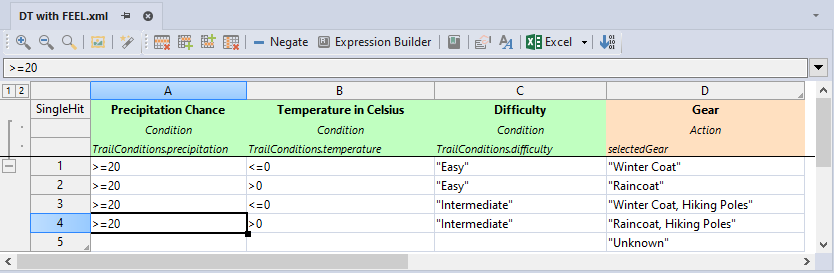
- DT with FEEL.xml: Has conditions for selecting gear. If any input parameters are null, it will result in “Unknown”
Boxed Expression
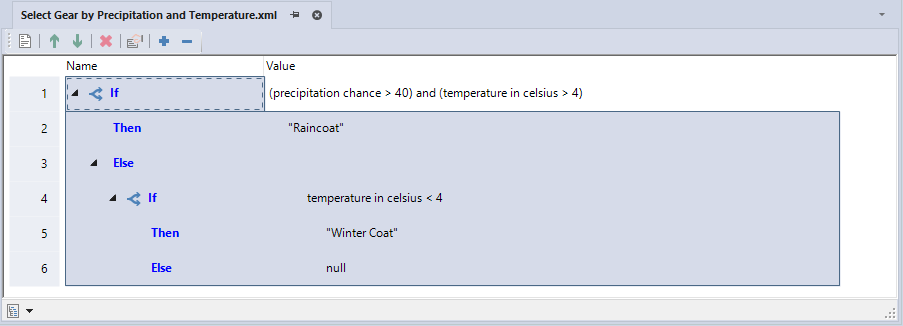
- Select Gear by Precipitation and Temperature.xml: This checks temperature and percipitation and outputs “Raincoat”, “Winter Coat”, or null.
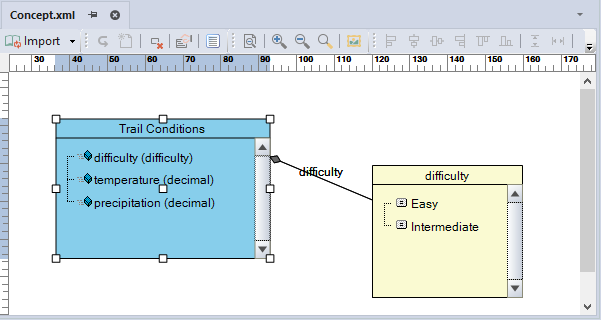
- Concept.xml: Creates the Trail Conditions input parameter with the attributes: difficulty (option), temperature (decimal), and precipitation (decimal).
The Design
Main.xml has four decision nodes.
Trail Conditions Input takes in the parameter TrailConditions which is defined in the fact concet, Concept.xml this transitions to Selected Gear which is linked to the decision table, DT with FEEL.xml.
Select Based on Conditions if Status is “Unknown” calls the function defined in the Select Gear by Precipitation and Temperature.xml boxed expression.
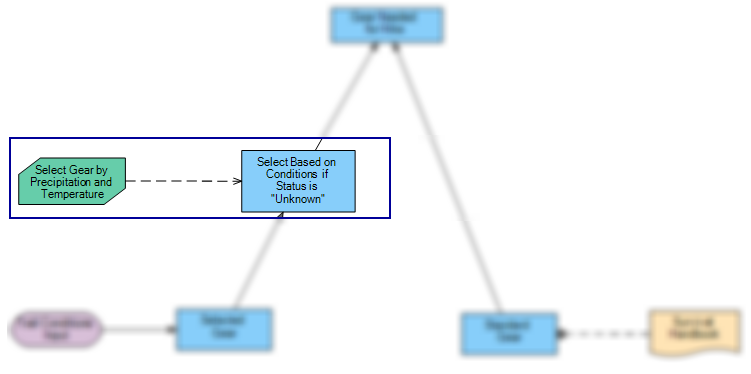
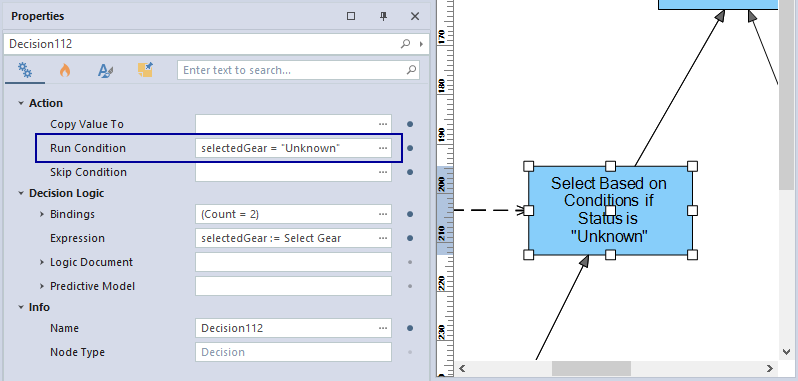
The Select Based on Conditions if Status is “Unknown” node has a condition to only run if the selectedGear variable is “Unknown”.
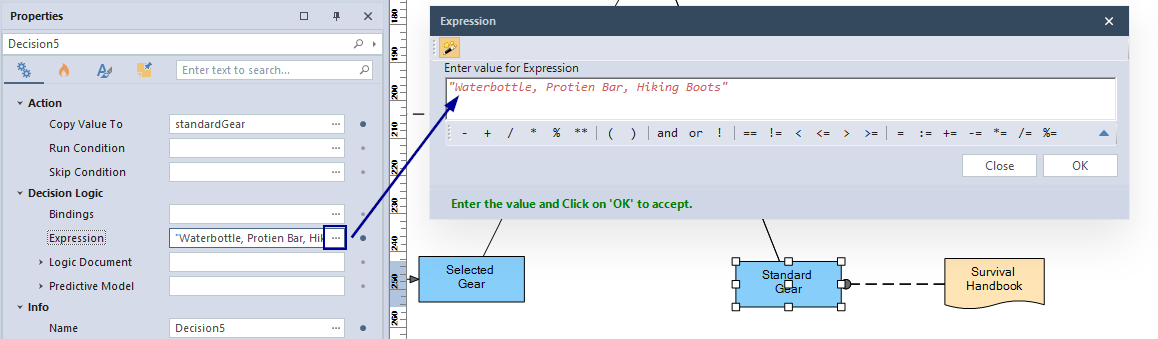
The Standard Gear node has a simple expression that creates a string that is a list of hiking gear. This is linked to a knowledge source which references a survival field guide.
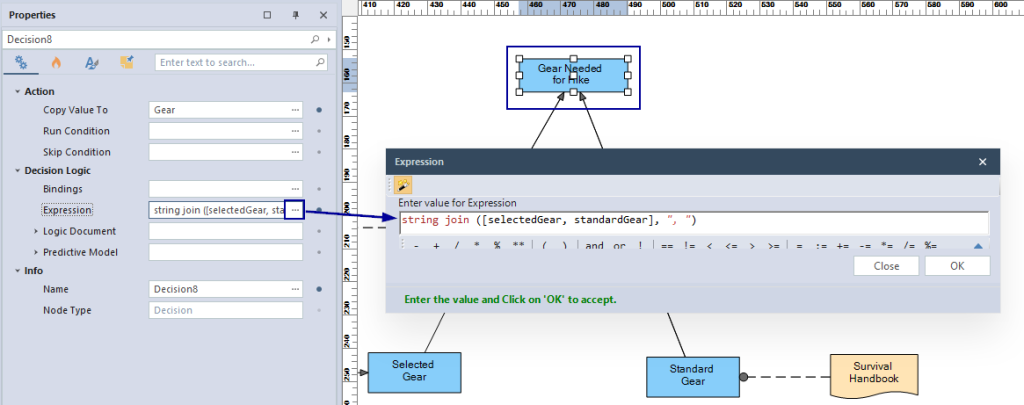
The final decision, Gear Needed for Hike has an expression to concatenate the standardGear string value and the selectedGear string value, and sets them to the Gear parameter.
Concept.xml creates our Trail Conditions type with three members, with the difficulty member having two possible options.
DT with FEEL.xml demonstrates the use of conditions and basic FEEL expressions to determine selected gear.
Select Gear by Precipitation and Temperature.xml is a boxed expression that selects the appropriate type of coat based on precipitation and temperature. If no coat is needed it returns null.
Download the Selecting Hiking Gear project
Use the attachment at the end of the page to download the sample project, or download directly from the home screen of Designer: