
◷ Reading Time: 5 minutes
Groups are a FlexRule Workbench feature which allows you to assign or update Roles to multiple accounts (i.e. Applications or Users) in one window.
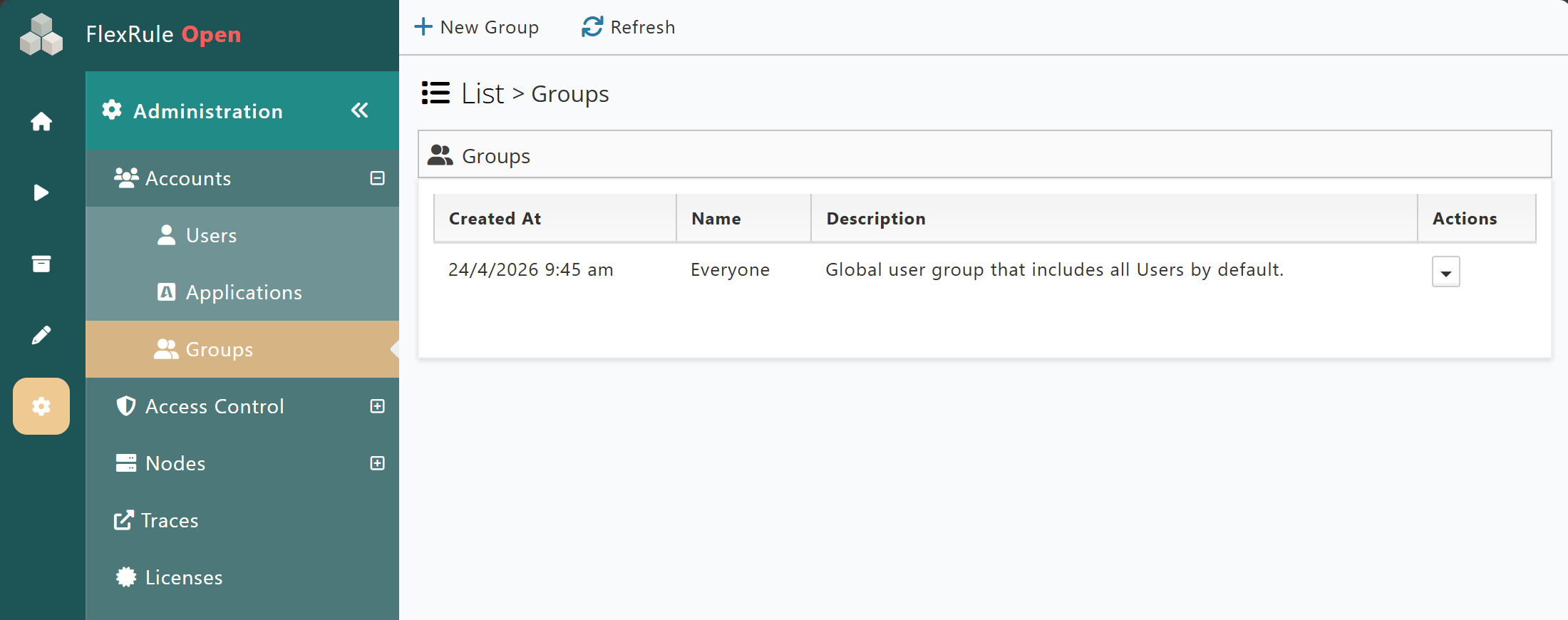
Everyone Is a protected default group where all Users will automatically be included as a member. This Group cannot be deleted.
You can perform the following actions in the Groups window:
- New Group: Create a new Group.
- Refresh: Refresh the list of Groups.
And also the following actions for existing Groups:
- Details: See/Update the settings or details of an existing Group.
- Delete: Delete an existing Group.
Create New Group
There are three sections required to be completed to create a new Group:
- General information about the new Group.
- Assigning members (Groups must have at least 1 member assigned).
- Assigning to the new Group’s members.
General Tab
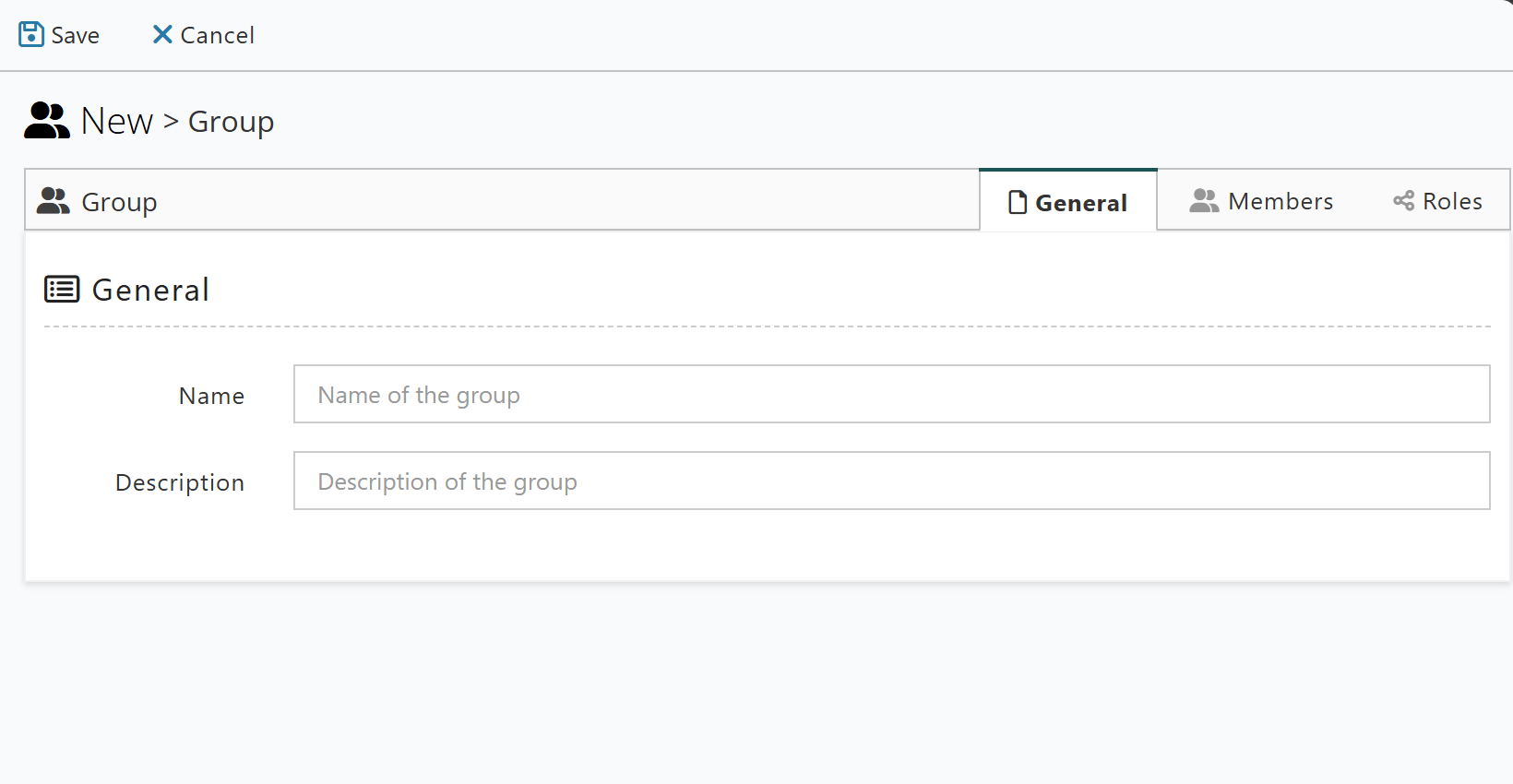
The General tab is where the name and description of the new Group can be assigned.
Members Tab
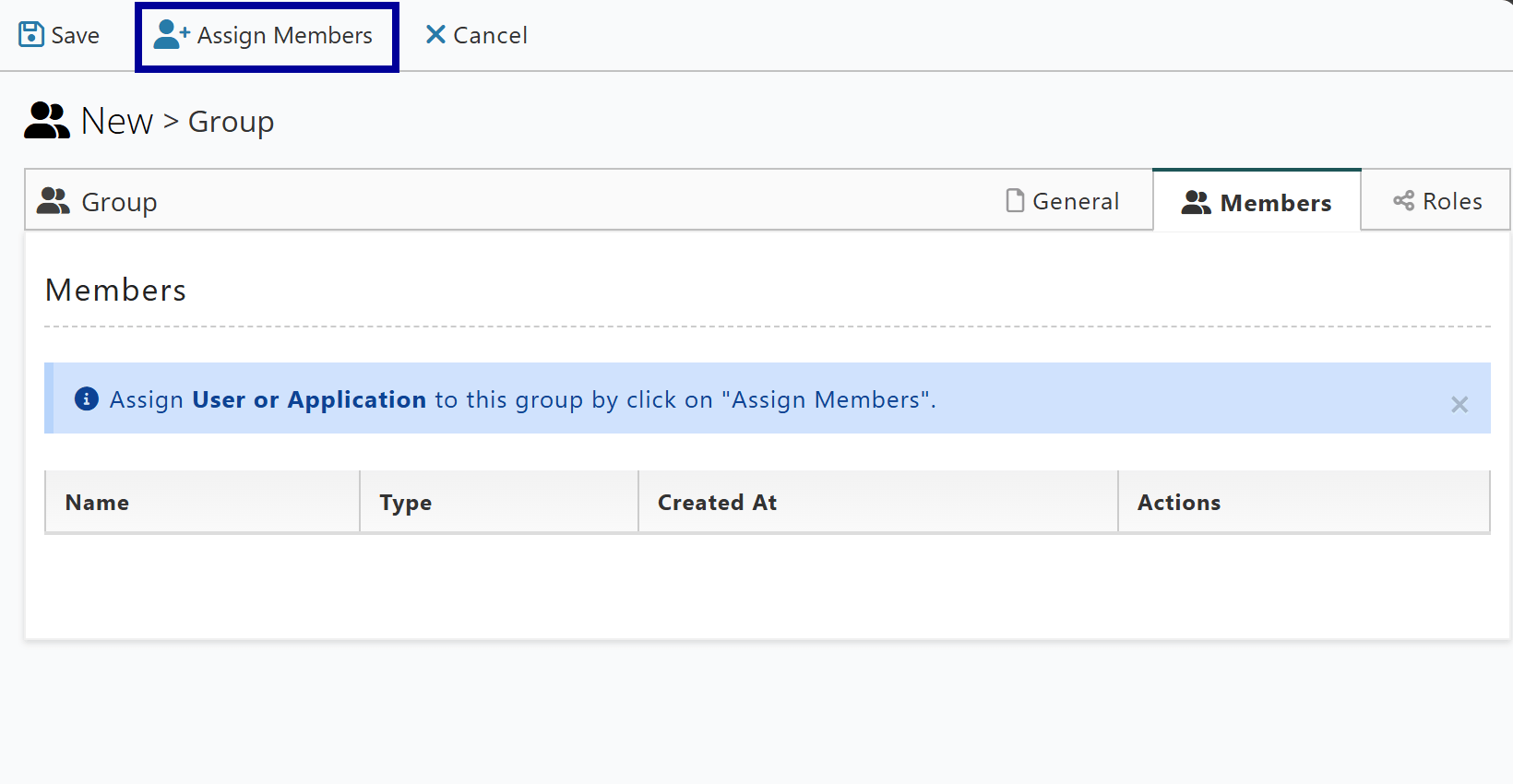
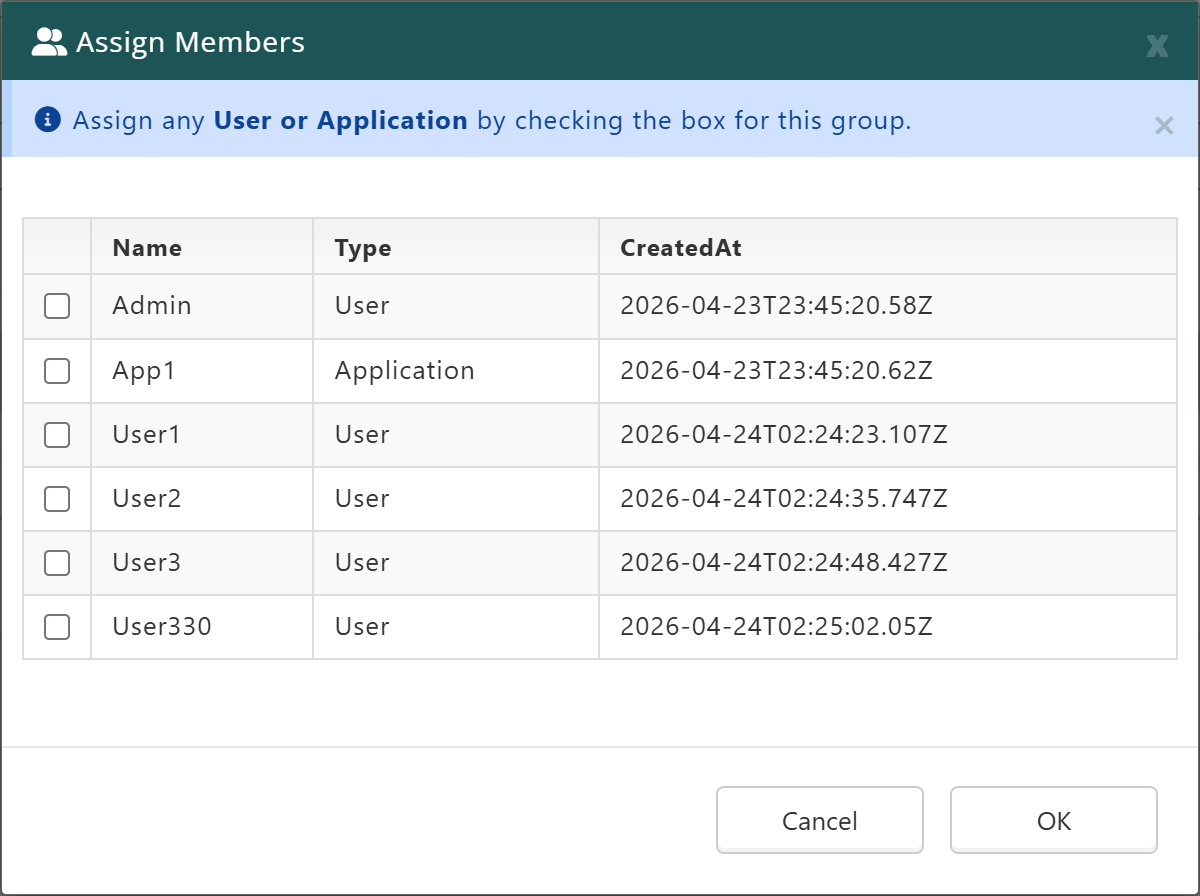
The Members tab allows you to assign accounts as members to the new Group. Accounts can belong to more than one Group at a time.
Roles Tab
The Roles tab is where you can set the Roles which should be assigned to the new Group’s members.
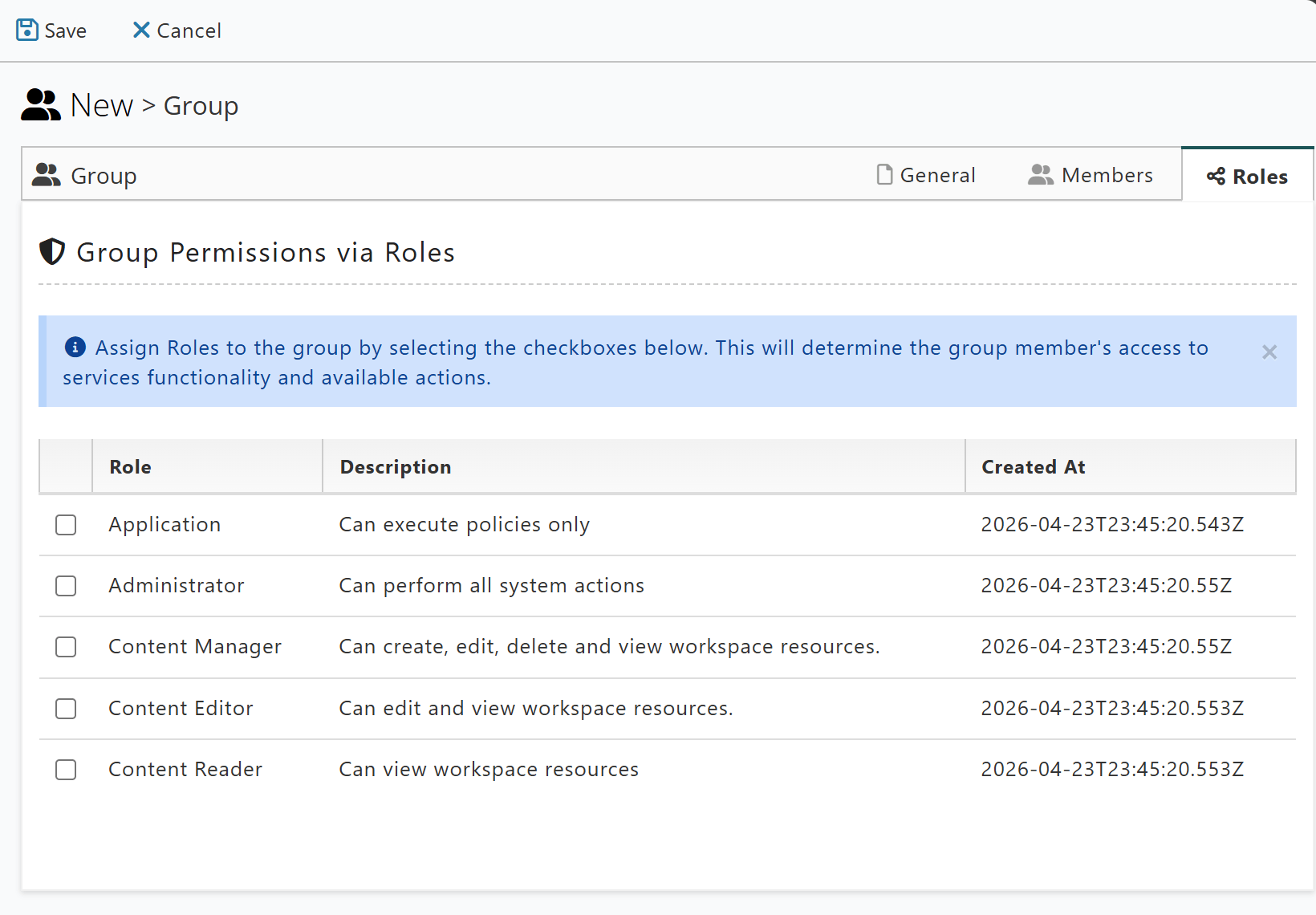
Once all the details of the new Group are finalised, click on Save in the top left.
Group Details
Under the Group actions, you can view or update the details of an existing Group.
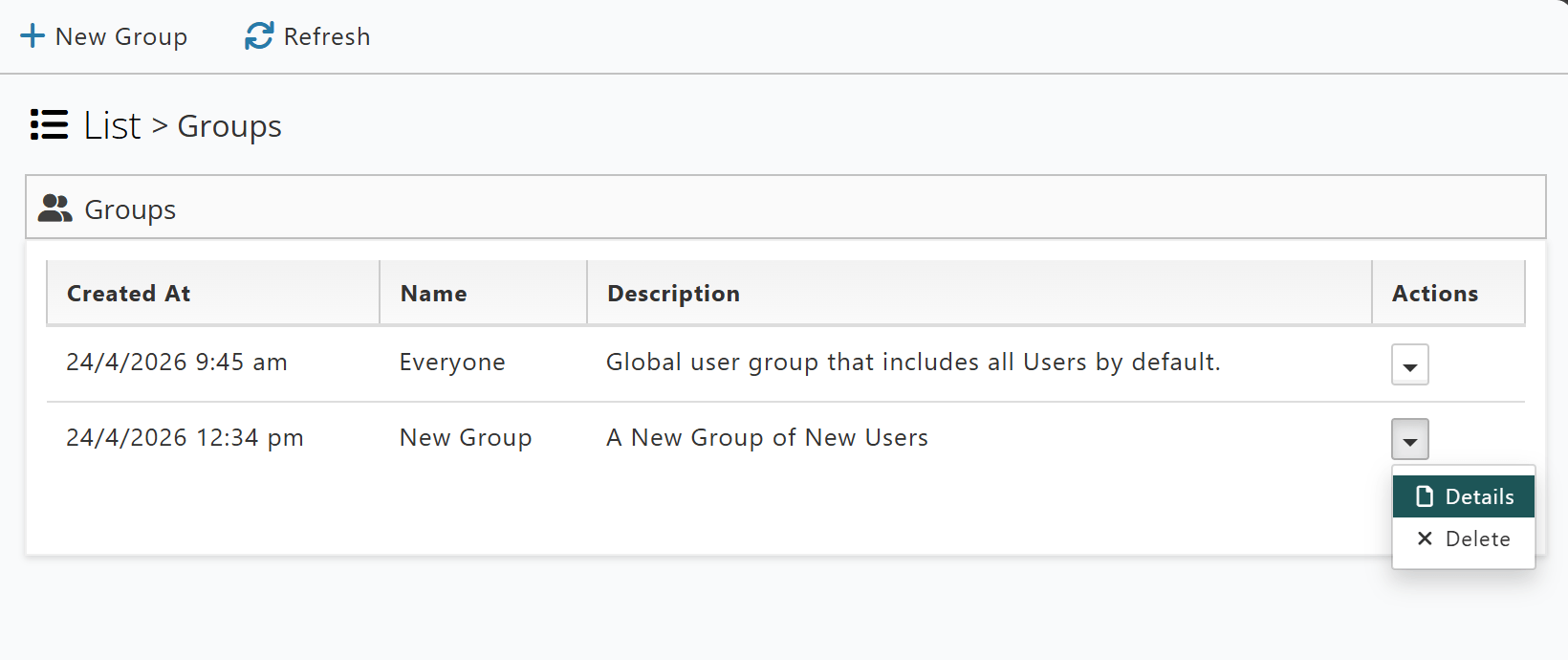
Group details that can be updated:
- Change Group description.
- Assign new members.
- Unassign current members.
- Change Group Roles.
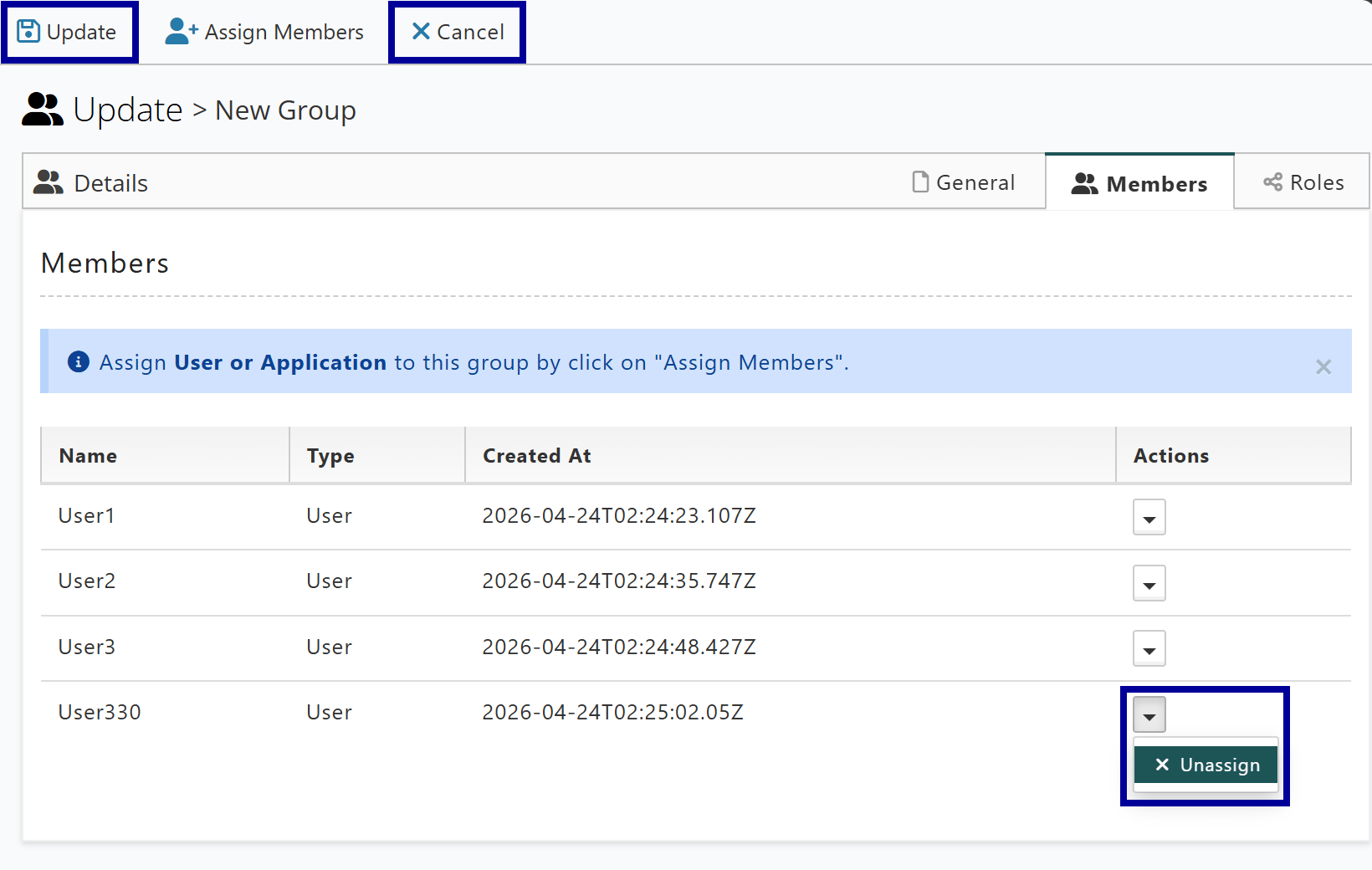
Once changes are finalised, make sure to click on Update in the top left.
Example: Administrator Denied User List
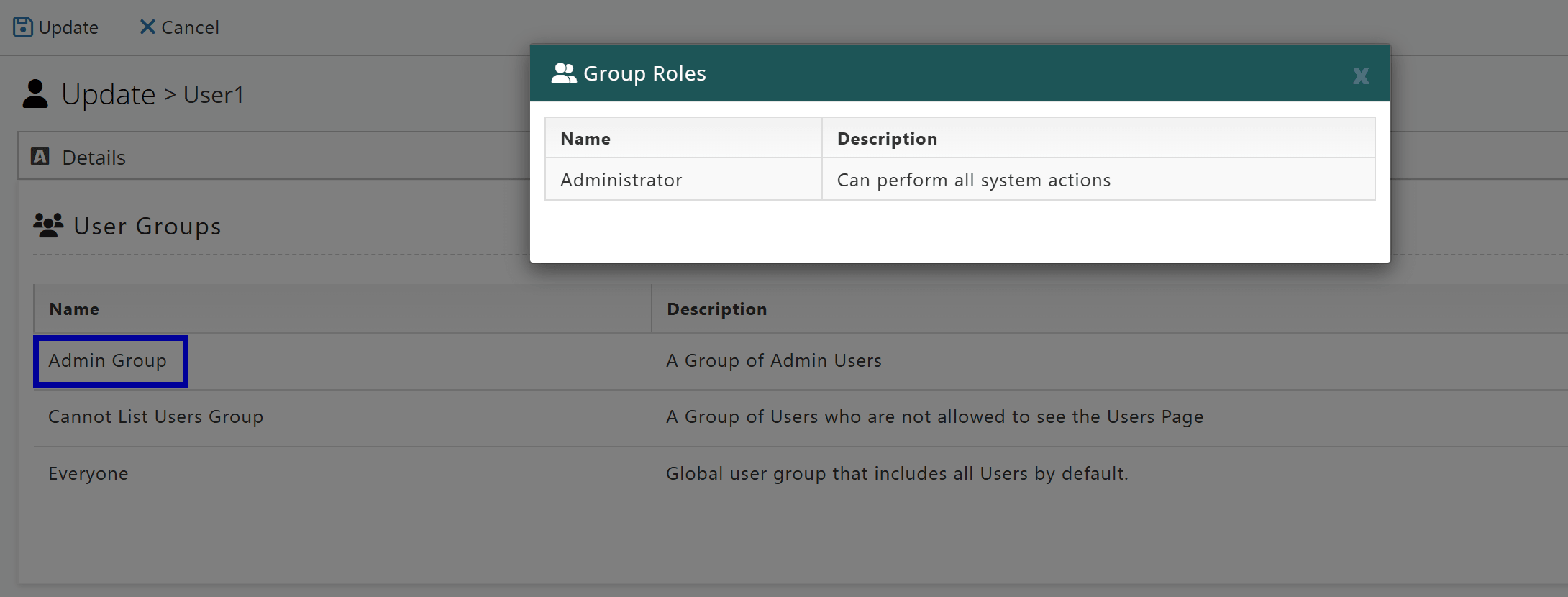
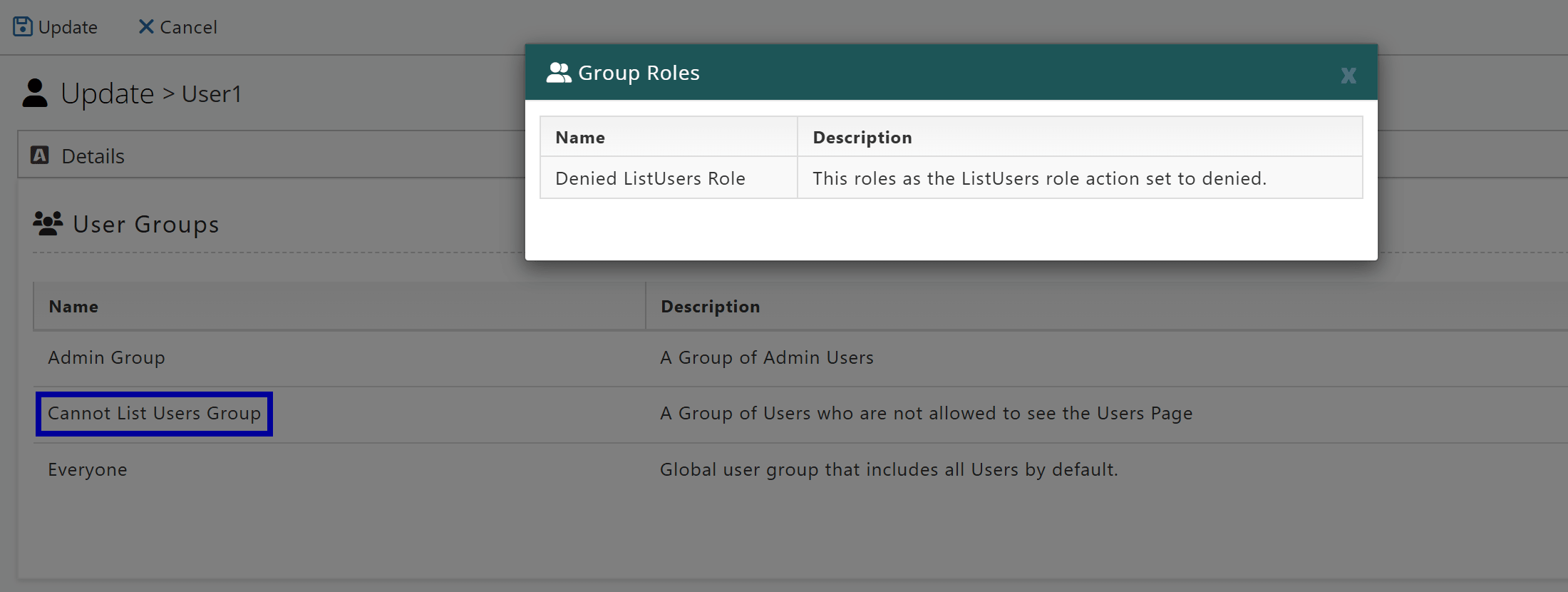
In this scenario, the account User1 is a member of the Admin Group but has also accidentally been added to the Cannot List Users Group.
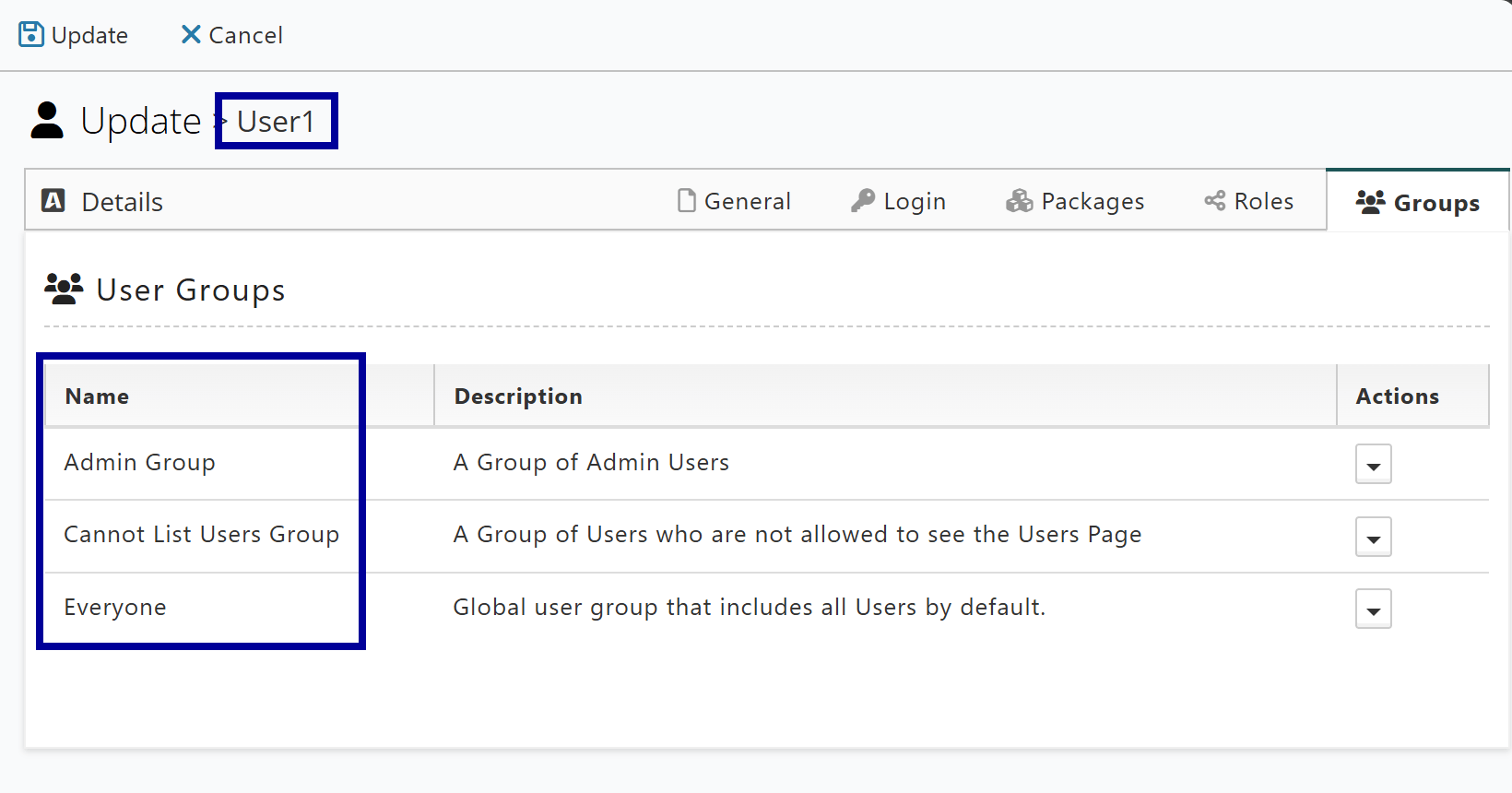
The Admin Group has the Administrator Role assigned.
Whilst the Cannot List Users Group assigns a Role that denies the ListUsers Action.
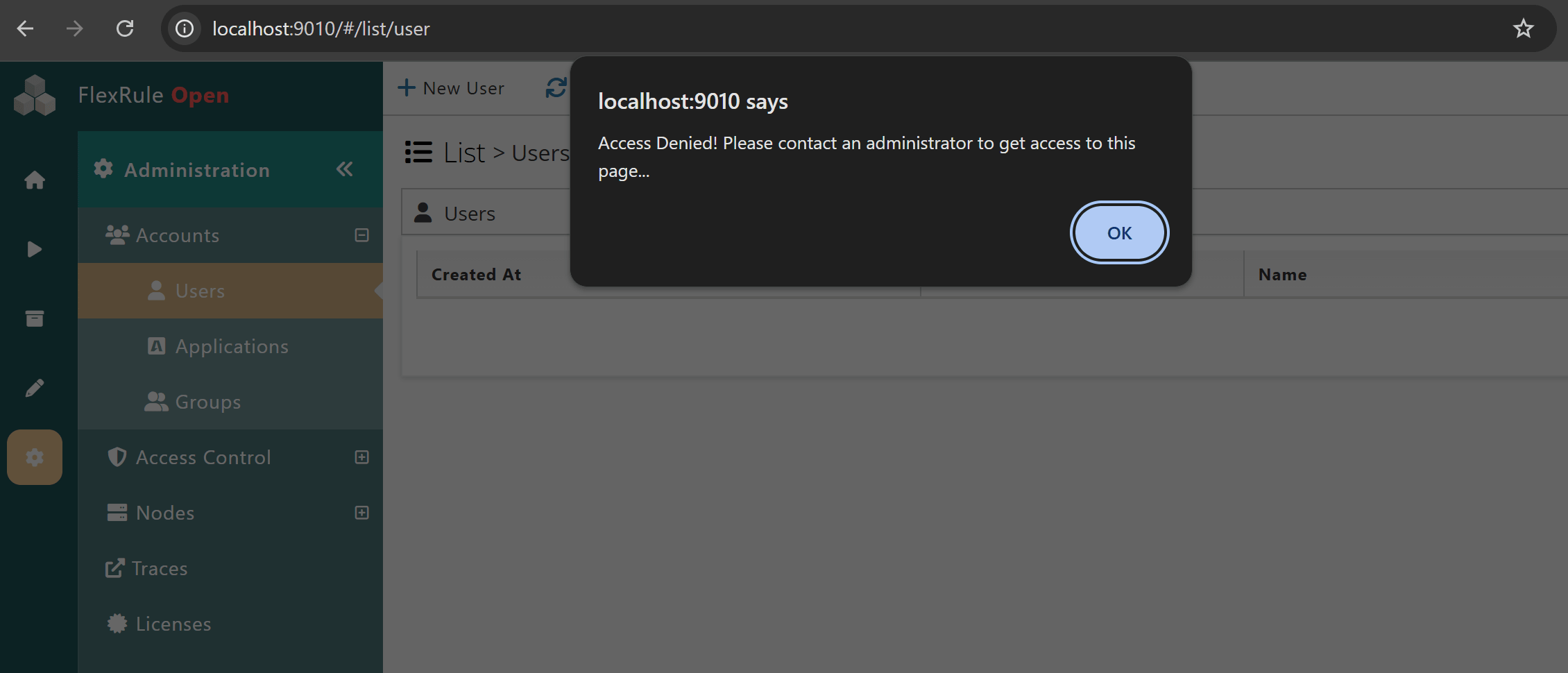
The result is that User1 will have the Administrator Role and Actions, except they will not be able to see the list of all Users. Instead, they will get the following message:
For more information about Roles and Role Actions, please read Manage Roles.