
◷ Reading Time: 12 minutes
This article will walk you through different best practices that can be used while modeling your business logics.
Whether you’re new to FlexRule or already familiar, we’ll explain everything from the basics to some advanced features.
Why Best Practices Are Essential
- Efficiency and Effectiveness: By following established practices, you save time and resources while achieving desired results.
- Quality Assurance: By adhering to best practices, you reduce the likelihood of errors and produce more accurate outcomes.
- Consistency: Following best practices promotes consistency in your model. Consistent models are easier to understand, maintain, and troubleshoot, especially when multiple people are involved in the modeling process.
- Scalability: Best practices are designed to be scalable, meaning they can handle larger and more complex tasks. As your modeling needs grow, following these practices allows your models to expand without losing efficiency or accuracy.
- Collaboration: When multiple people work on modeling part, adhering to best practices ensures a common understanding and approach. This facilitates collaboration and makes it easier for team members to work together seamlessly.
Identifying Performance Issues
Events Viewer
Event Viewer can be used to analyse the overall performance of your model as well as performance of each decision node. It shows a step-by-step analysis of executed logic while supporting export and import capabilities.
You can find the Event Viewer window in Parameters section in the FlexRule Designer once you run the project or else navigate to Tools -> Events Viewer

Read more about Event Viewer: click here
Improving Performance
Discrimination in Decision Table
Discrimination in the Decision Table allows building a network of lookups and filters based on constant conditions of a Decision Table behind the scene. This feature may impact heavily on your model performance if you handling large set of rules in a particular decions table.
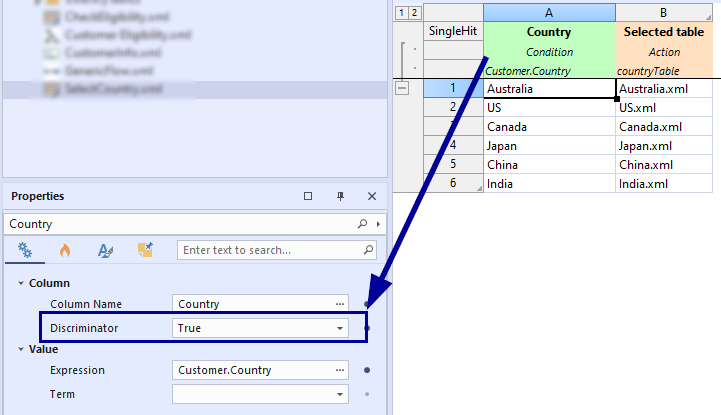
Read more about Descrimination in Decision Table: click here
Monadic Operators
Monad is a small function with input as its source, that will be transforming the source to an output. The monad function may or may not have some parameters.
Read more about Monadic Operators: click here.
Monadic Expression language supports parallel processing. In the monadic operators, all operators ending with Grave Accent ( ` ) postfix are the parallel enabled.
Using Loops
When you introduce Loops to your model it may impact on project performance as well as complexity of the model. It is recommended that always use monodic operators to iterate a collection unless you want to access an object inside the collection.
The following example shows a generic flow uses nested loops to handle the following nested data collection.


You can replace both loops using single expression as follows.

Cache Memory
Caching enables your model to store some data in memory. If the cache is available, the data source retrieve stored values from memory instead of re-executing the steps.
You can set the cache for Database, Excel file, REST API and FIle in a Generic Flow or Workflow. Apart from that, you can set cache in execution events if it is a Database or REST API call.
Read more about cache management: click here
Complex Flows
A single undivided, complex decision is difficult to update. This behavior leads to inconsistency and inaccuracy of decisions since it becomes complicated to update and incorporate all the situations.
A multistep decision or multistep decisioning refers to a technique where a complex decision in decision-making processes is divided into multiple simpler, more understandable, reusable decision components with lesser complexity by applying the “Decision Decomposition” pattern. These less-complex decisions then work in collaboration to satisfy the required outcome of the complex decision.
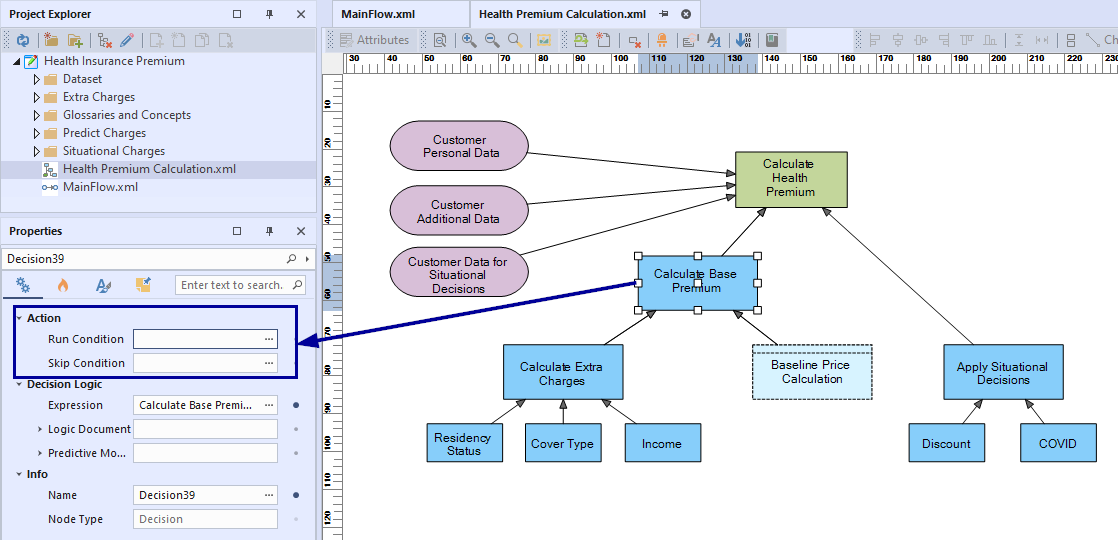
To avoid these complexities, Decision Graph can be used to decompose complex decisions very easily. Decision Graphs can be used to define dependencies between multiple decisions, dependencies between data requirements and decisions and dependencies between various graphs of decisions.
Not only that, you can add skip and run conditions for any decision nodes which define whether that decision node needs to be executed or not.
Events and Triggers
The pre/post execution events and triggers help reduce the flow steps that are not related to the actual business process, such as logging, sending of notifications, connecting to a database or a REST API, transitional calculations, etc…
When a node in a decision graph is selected, you can set the triggers in the properties windows as below:

Read more about events and triggers: click here.
Dynamic Rouing
Dynamic routing is a feature that enables the rouing the execution to a particular path based on specific conditions or parameters. Importantly, these conditions are evaluated during runtime, not during the initial design phase. This technique allows you to make your flow orchestration simpler to understand and easier to maintain.
The following diagram shows an example of dynamic routing usage in order to avoid complex orchestration.

Read more about how to apply Dynamic Routing to your orchestration: click here.
Working with Data
Data Handling
Data handling refers to fetching data from data source that can be done in two different ways as follows.
Eager Loading
- Eager Loading will fetch all the data that you might need from the database in one query, which includes all related data.
- However, eager loading can increase the query complexity and memory usage and fetch unnecessary data you may not need.
- Eager Loading is more suitable for scenarios where you need to access the related data often.
Lazy Loading
- Lazy Loading will only fetch the data that you explicitly request from the database •
- This can reduce the initial query time and memory usage but can also lead to multiple queries and performance issues if you need to access the related data later.
- Lazy Loading is more suitable for scenarios where you don’t need to access the related data frequently.
Shared Projects Across Team
Business Glossary
A business glossary is a dictionary that defines all the business terminologies.
When a business person and a technical person work together, if you have a technical person creating the decision tables and a business person customizing the rules and adding values, having a business glossary will be very important as it will interpret business terms into technical terms and vice versa.

Read more about Business Glossary: click here
Adding Comments
Add descriptions and comments to describe the expressions/decisions is always consider as a best practices.
Read more about adding comments: click here.
Fact Concept
Fact Concept is used to define the context of a business domain. In order to create a Fact Concept document you can import a CSV, PMML, JSON, JSON Schema, Database Tables, or Views. It will create a Fact Concept document automatically according to the source you imported.
Read more about Import Fact Concept: click here.
Data Validation using Fact Concept
On the modeling of the fact concept, you have the option to set a member of fact which can be either mandatory or it is optional. However, Fact concepts define the constraints but DO NOT enforce them automatically, which gives you the ability to have situational and flexible behaviors in different scenarios.
To enforce the constraints, you need to use a step called Validator as part of a flow similar.


- The Validator step (Green node in the above flow) will enforce data against one or more facts
- Collects the notification automatically (different types, e.g., Error, Warning, etc.)
- Sets a decision value to decide what should be next action based on a conditional transition
However,- if you do not validate and enforce the input against a fact concept, AND
- if your decision model requires a specific field in execution AND
- your input does not provide it
service/engine will throw an exception.
Read More about Fat Concept Validation: click here.
Exception Handling
Exceptions are the errors that can occur during the execution of a project, disrupting the flow. This can happen due to different reasons and the exception message provides a detailed description of the cause.
Therefore, it is a good practice to catch the exceptions before it crashes the flow. For example, when an exception occurs, you can show the exception message (what caused the error) and how to fix it, instead of stopping the whole flow without any explanation.
Read more about how to handle the exceptions in FlexRule models: click here.
Test Cases
FlexRule Designer enables users to define and model test cases that can be used for testing all aspects of your business logic. Building the test cases does not require programming skills. Defining, modeling, and running test cases are all integrated into FlexRule Designer.
In FlexRule Designer, you can either manually create test cases or automatically create test cases after importing an Excel sheet.
Sample Test Cases:

Results after running sample test cases:
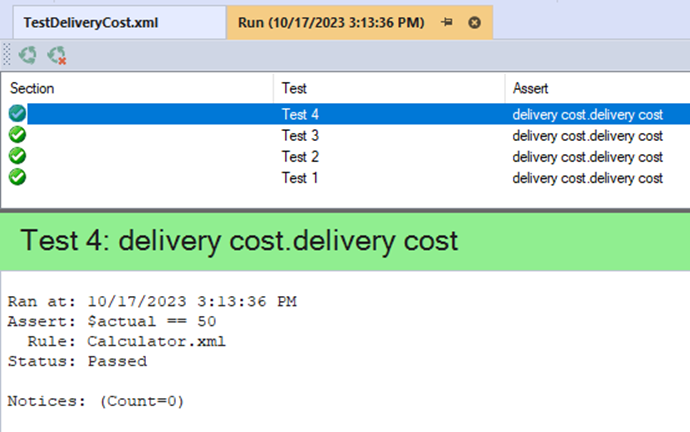
Read more about creating test cases: click here.
Project Execution
Watch window
The Watch window is a place where you can:
- View the result of a specific expression against the current execution context
- Change a value in the execution context
- Watch Data Composer results as runtime objects.

Read more about how to use Watch window: click here.
Debugging
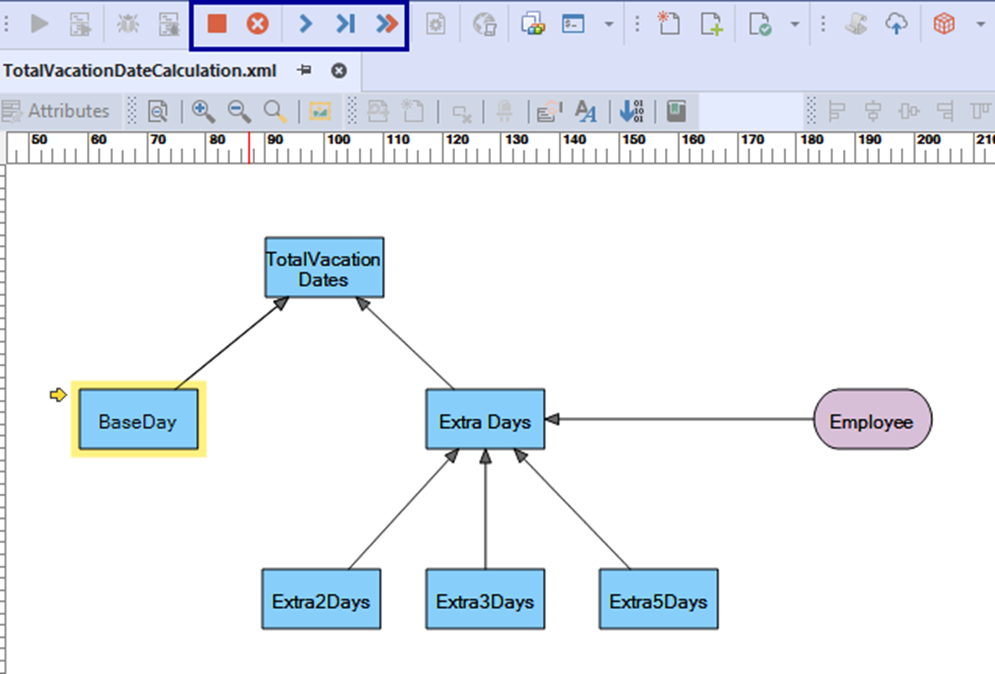
Debugging allows you to view detailed information regarding logic execution and it allows you to navigate to different parts of logic.
In debug mode, you will be able to inspect values, understand the model’s behaviors, view execution context, change values on the flow, evaluate custom expressions, and more.
Following highlighted tool set will help you to navigate to different parts of the model when it is in debug mode.
Read more about how you can use debug: click here.
Breakpoints
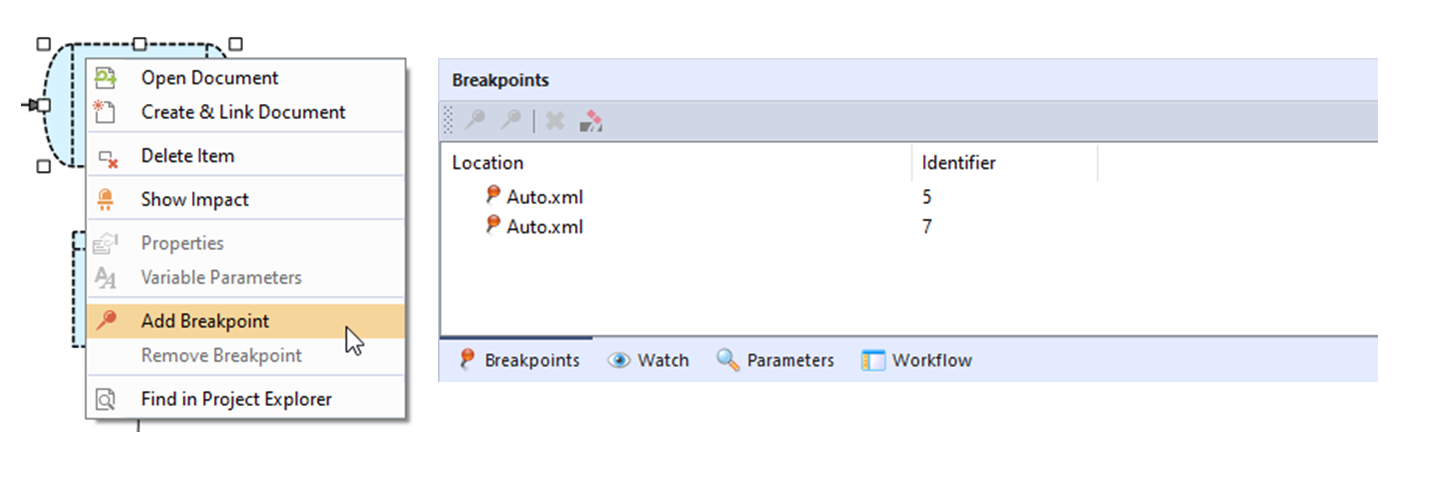
Breakpoints indicate where FlexRule Designer should suspend your logic so you can take a look at parameters and values.
In FlexRule Designer you can:
• Add breakpoints
• Disable breakpoints temporarily
• Remove breakpoints
• Manage breakpoints using Breakpoint Screen
Read more about how to use break points: click here.
Interactive Shell
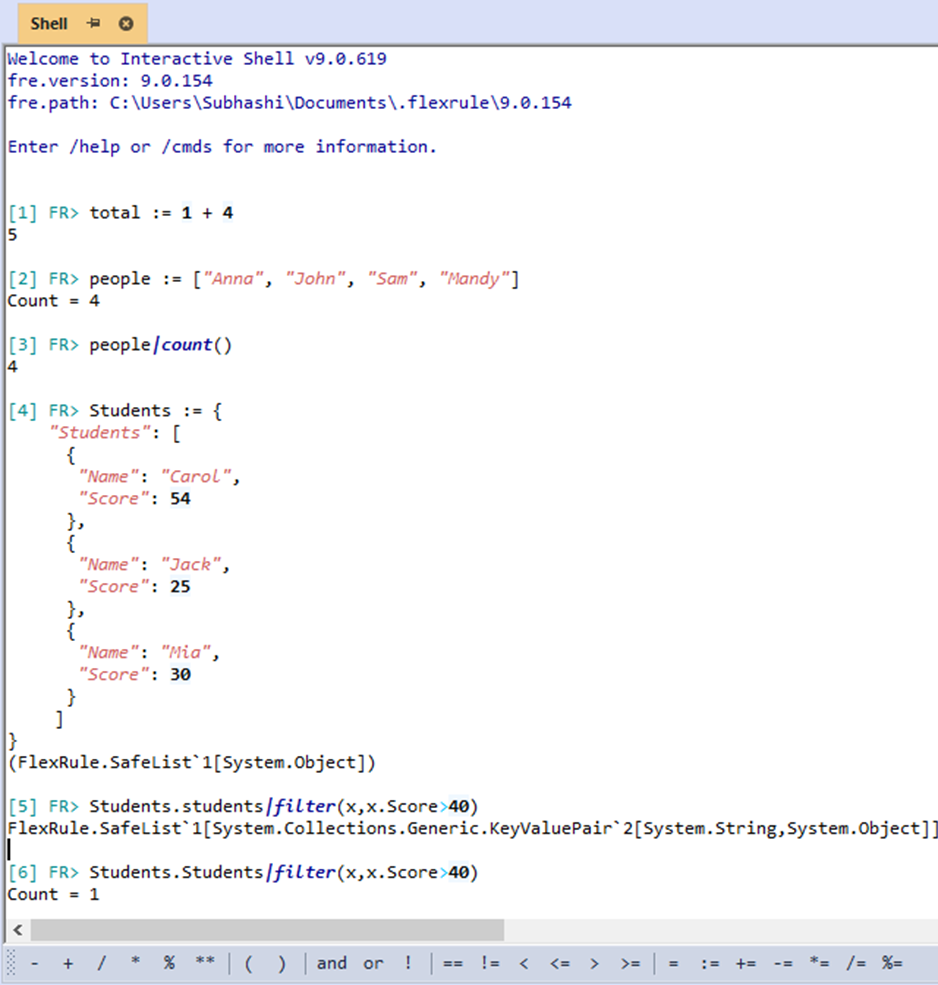
The interactive shell is a command-line interface that allows executing expressions and viewing data.
If you want to try an expression before adding it as a part of the project, you can try it in the shell and check whether it gives the expected results.
Read more about how to use Interactive Shell: click here.